How to run a free spam test (email deliverability audit)?
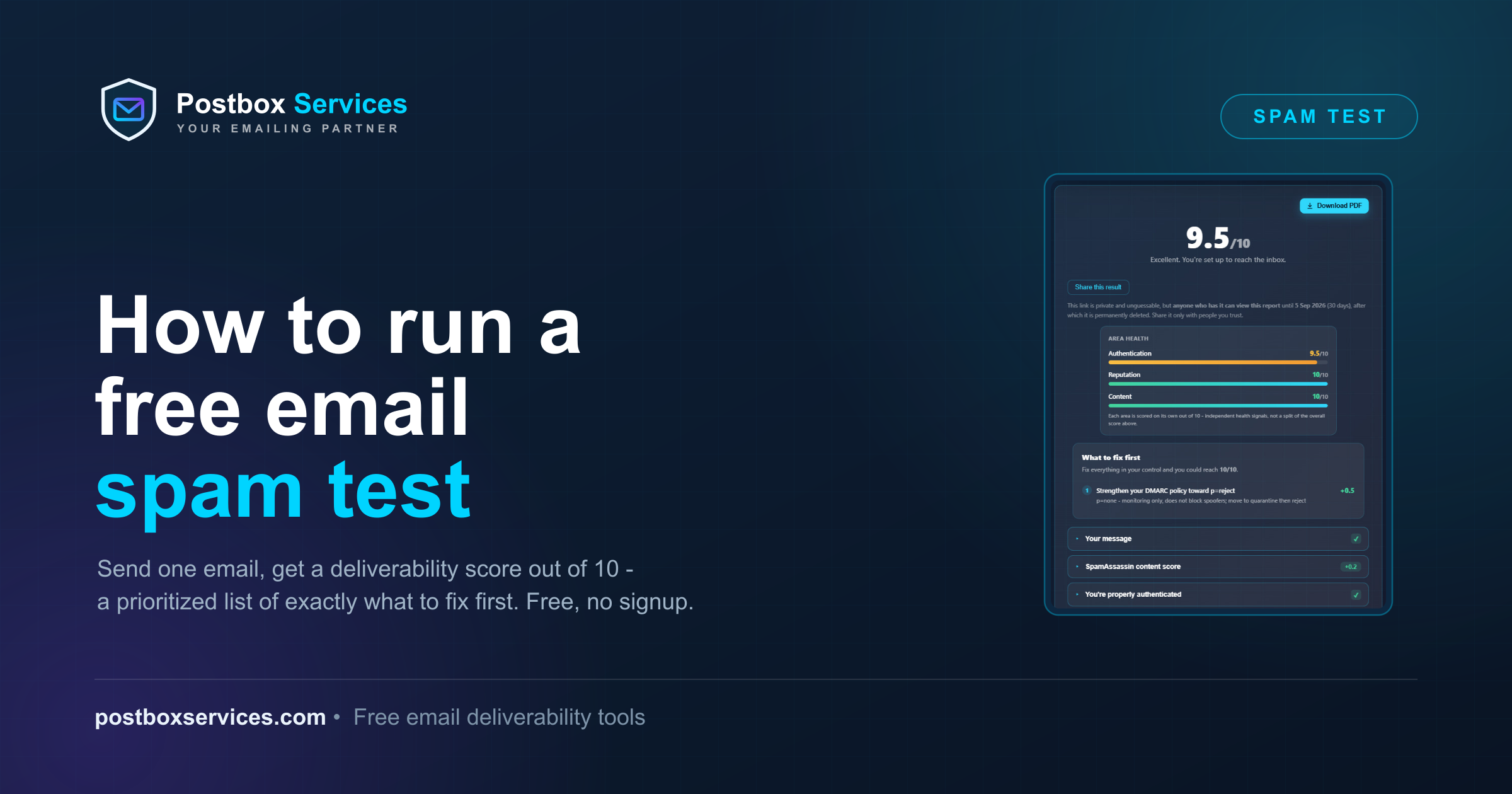
A spam test is the fastest way to answer the question every sender is really asking: will this email reach the inbox, or land in spam? You send one real email to a disposable address and, within seconds, get a score out of 10 plus an itemized report of what is helping or hurting this message's delivery - authentication, reputation, blacklists, spam-content and formatting - with exactly what to fix first. If what you have been searching for is a spam score checker, this is exactly that: a score that tells you how spammy the message looks, and a report that tells you why.
Think of it as a quick, focused snapshot - not a full audit. A complete email deliverability audit goes far deeper: your campaign and sending history, Google Postmaster and Microsoft SNDS reputation data, SMTP and bounce logs, list hygiene, warmup and volume patterns, and much more that no single message can reveal. The free spam test is the two-minute entry point - it catches the technical issues on one send, and shows you when it is worth the deeper look.
This guide walks you through running the free spam test with Postbox Mailtester end to end - getting a one-time test address, sending from the system you actually use, and reading every section of the report so the score becomes a to-do list, not a mystery. No signup, no login, about two minutes.
Prefer to just run it? Start your free spam test here. Otherwise, here is the whole thing, step by step.
Part 1 - Run the test
Step 1 - Get your one-time test address
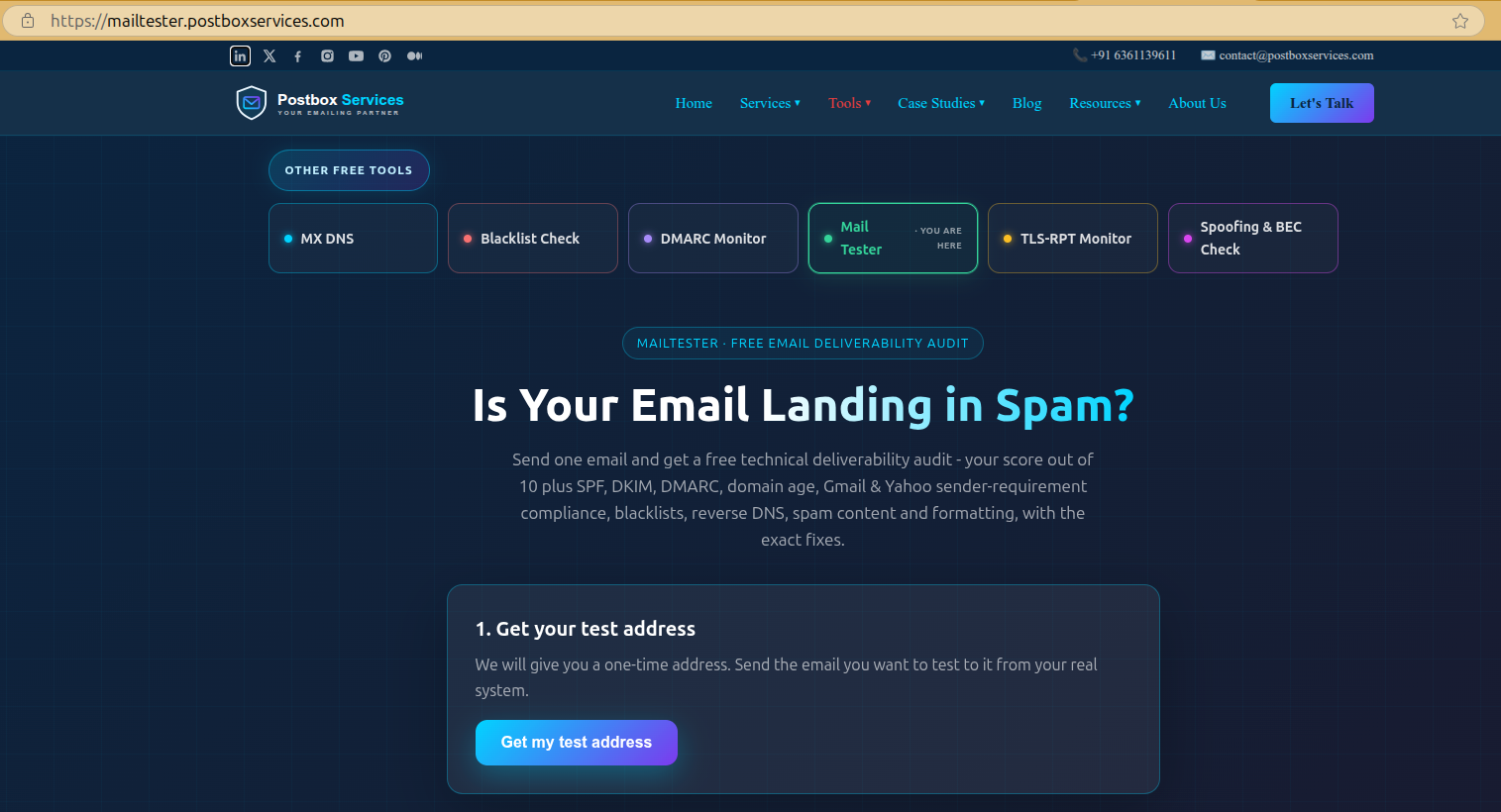
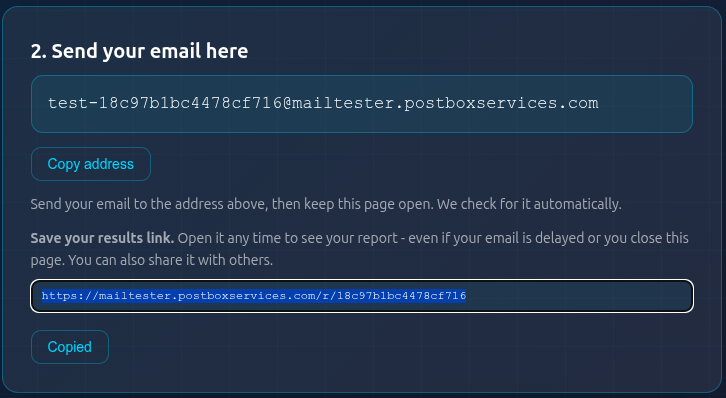
Open the Postbox Mailtester homepage and click Get my test address. You get a disposable address that exists only for your test - no signup, no login.
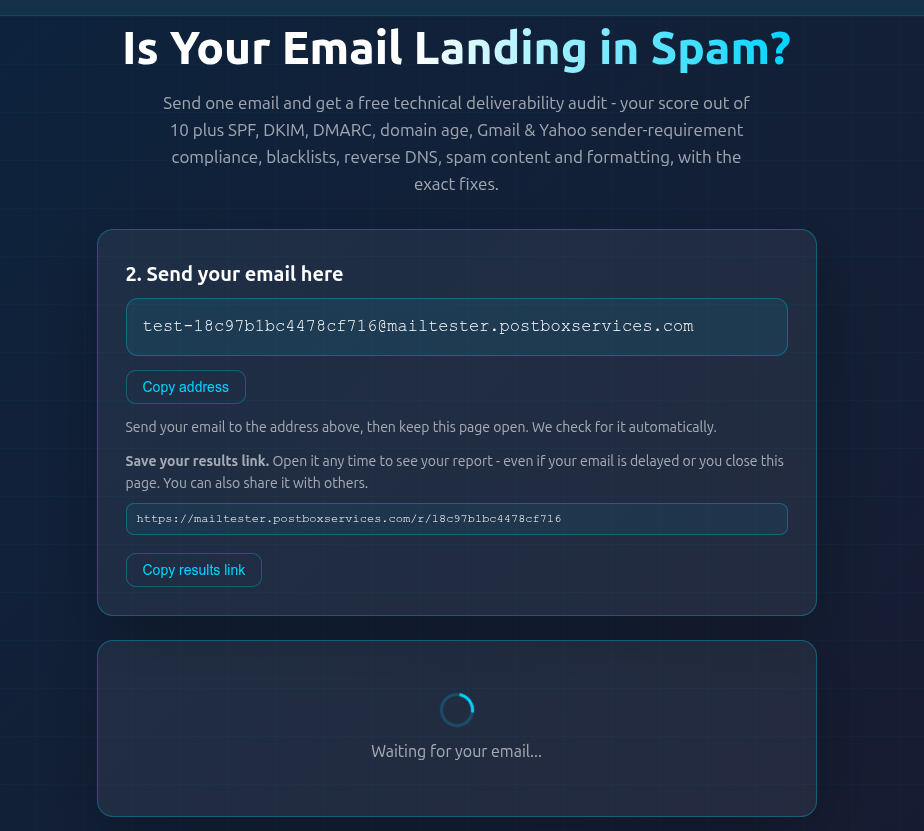
Step 2 - Send the email you want tested
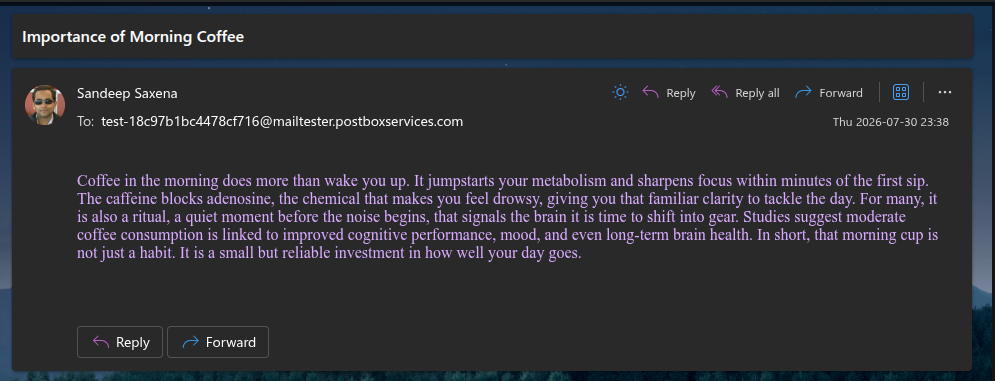
Send to that address from the real system you want to audit - your Google Workspace or Microsoft 365 mailbox, your ESP (as a campaign test-send), or your own server. The report grades whatever actually delivered the message, so a test sent from the wrong place audits the wrong thing.
- Use your real content - subject and body - not "test 123". The spam-content analysis is only as real as the message you send.
- Keep the page open; it detects your email automatically. Or copy the results link shown under the address and come back any time.
- Each address takes one test. Fix things, then run a fresh test to confirm.
Step 3 - Read your score
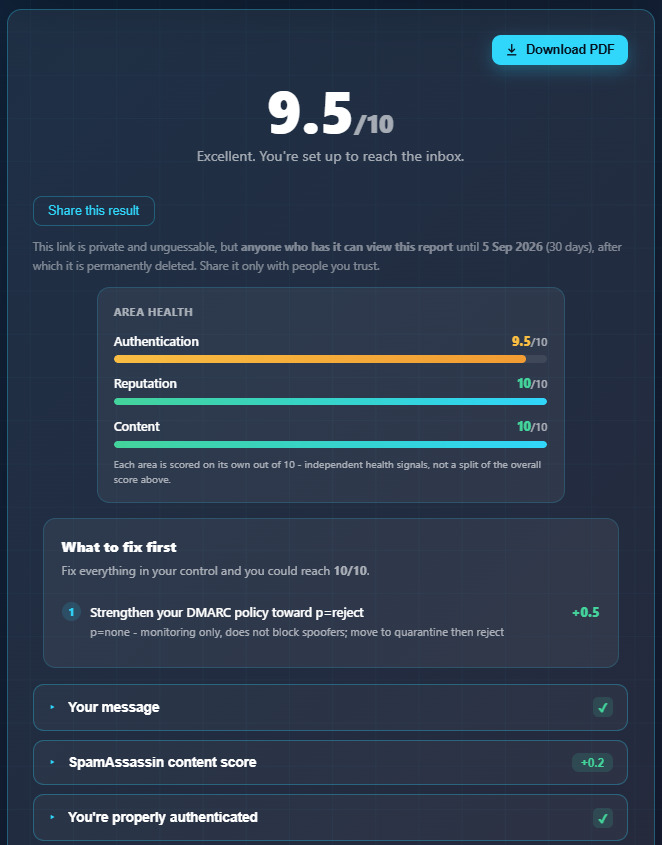
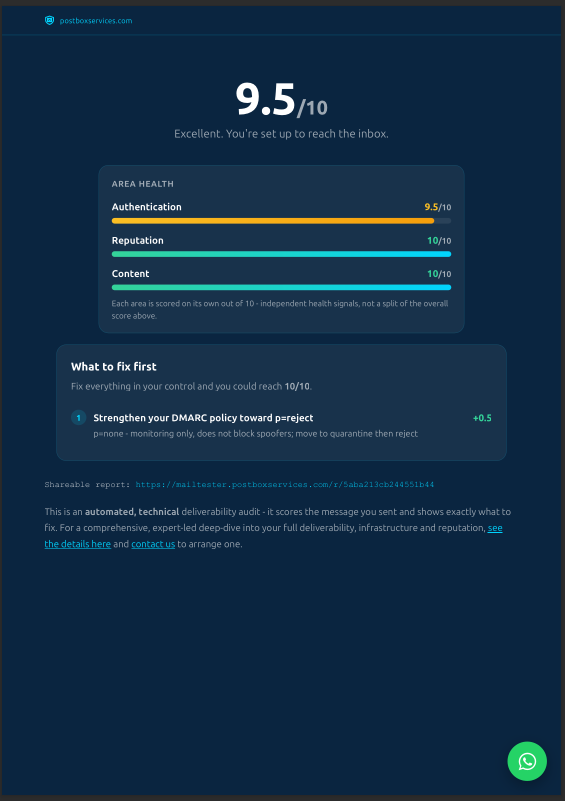
Within seconds of delivery the report appears, headlined by a score out of 10 - the overall verdict. 9-10 means technically clean; 7-8 means correctable issues; below 7 means something is actively hurting delivery. Just below the number, three things turn that score into a to-do list:
- Area health bars - Authentication, Reputation and Content, each scored out of 10 on its own issues. They are independent health signals, not slices of the overall score, so they show you where a problem lives at a glance: a low Authentication bar with full Reputation and Content bars means fix your SPF/DKIM/DMARC, not your content.
- What to fix first - an action plan in impact order, each fix showing the points it would recover (for example +0.5) and, where it matters, a badge for who can act: you, your provider (shared-infrastructure items like some blocklists or reverse DNS on a shared IP pool), or only time (domain age).
- Your reachable score - the best score you can realistically hit once you fix everything in your control, so you are never chasing points locked behind a shared IP or a domain's age.
Under the board every section collapses, so you can open the ones flagged for attention and skip the rest. The remainder of this guide walks each section in order.
Part 2 - Reading the report, section by section
Your message, as recipients see it
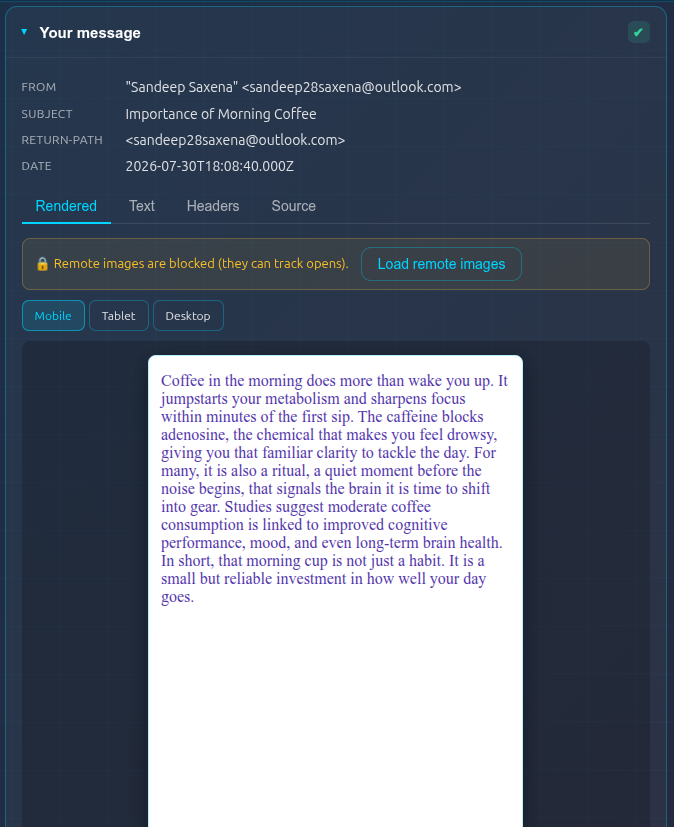
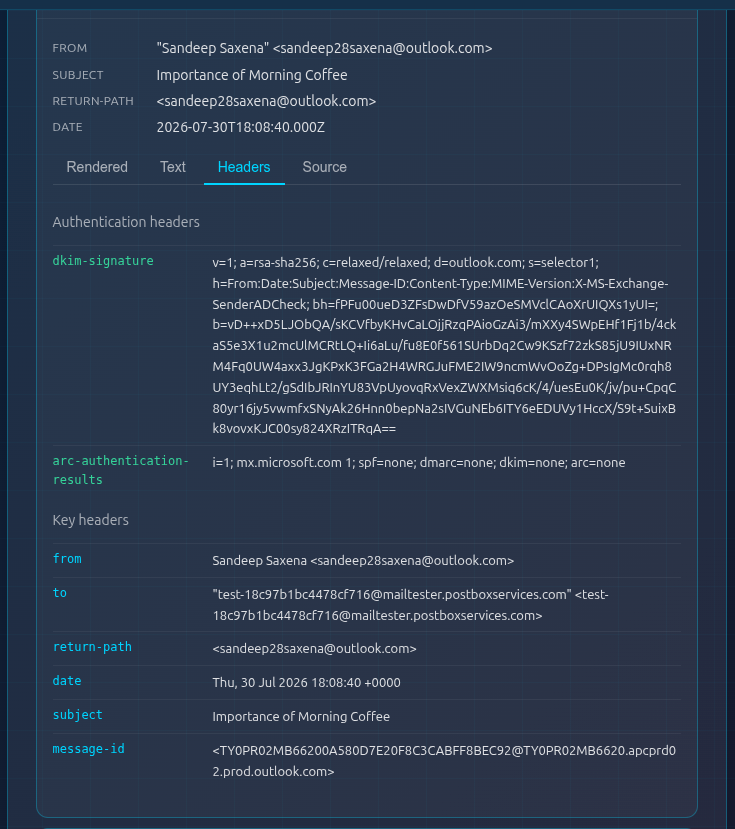
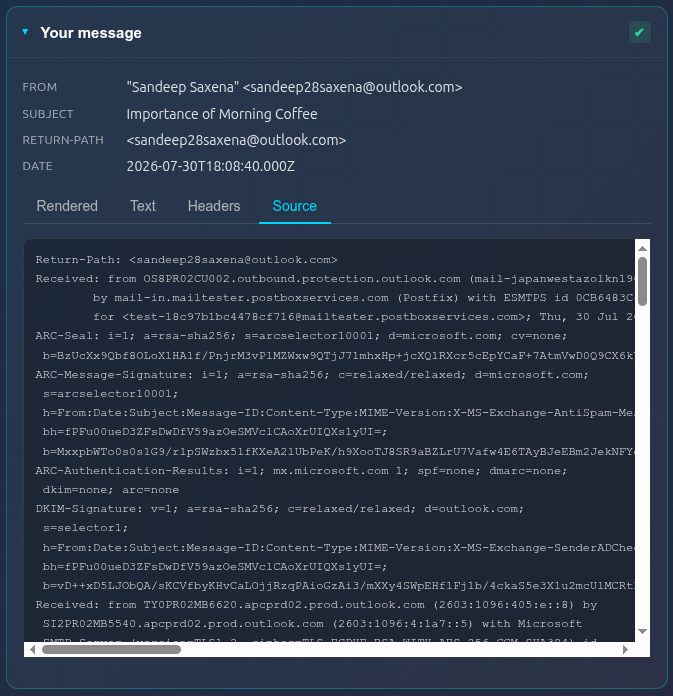
The first panel of the report is the message itself, in four tabs. Rendered shows your HTML email in a safe sandbox with a width toggle - Mobile (375px), Tablet (768px) and Desktop - so you can check that buttons, images and text survive a phone screen, where most email is opened first. Text shows the plain-text part (what strict clients and some filters read). Headers lists the authentication headers - Authentication-Results and friends - plus key headers like From, Reply-To and List-Unsubscribe: this is the raw evidence every other section of the report interprets. Source is the complete message exactly as it was delivered, for when you need to see everything. It opens on the Rendered tab at Desktop width, with remote images blocked by default because they can track opens. The Rendered panel also flags risky HTML - a <script> tag, an <iframe>, or inline event handlers - because mailbox clients strip or block these, so at best they break your layout and at worst they trip spam filters. Here is the rest.
Authentication - SPF, DKIM, DMARC and alignment
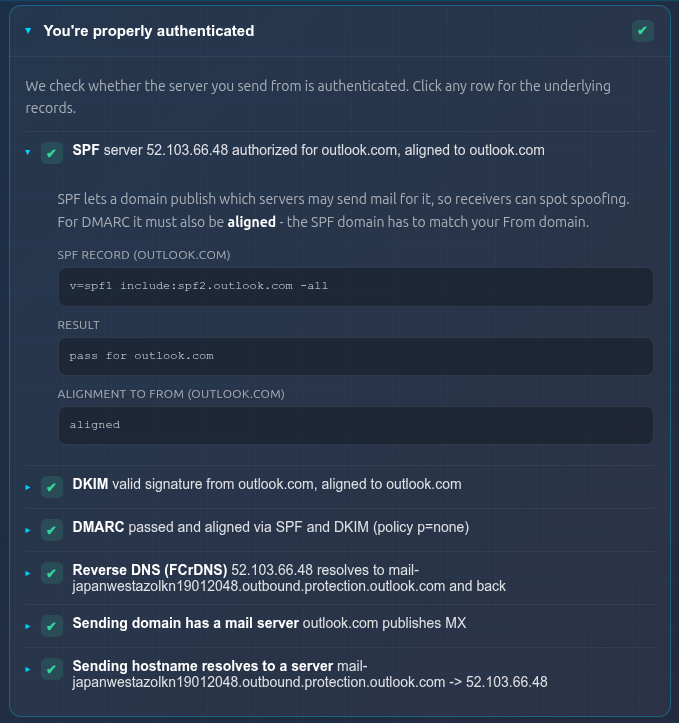
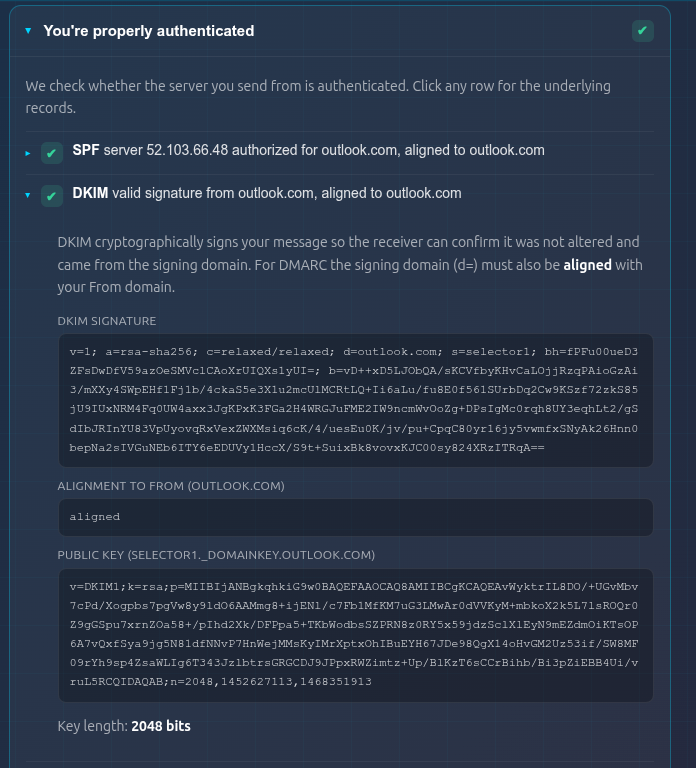
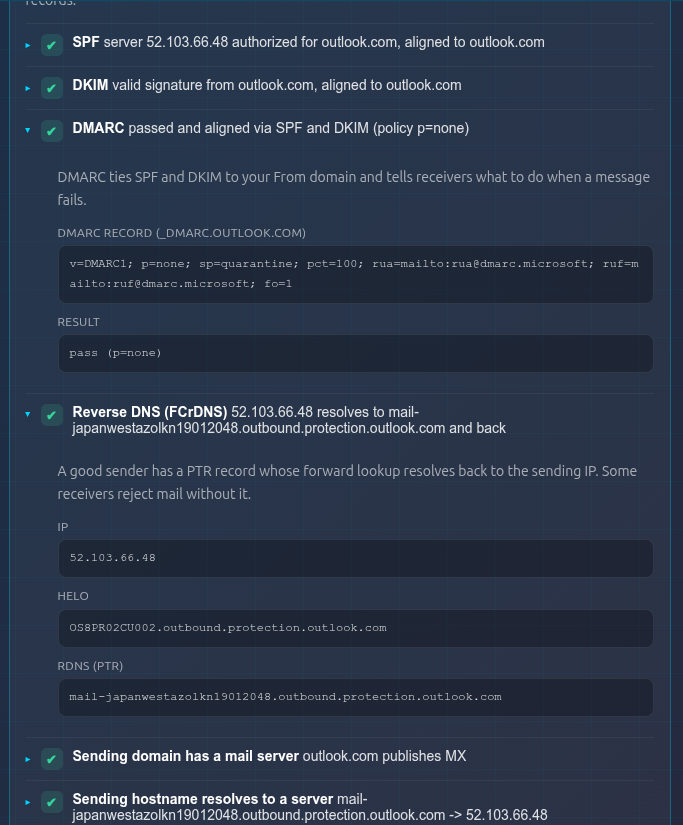
The most important section. It shows whether SPF and DKIM pass, and - what most tools skip - whether they align with your visible From domain. Unaligned passes are why mail "passes SPF" yet still fails DMARC. Anything red here outranks every other fix on the page.
DMARC policy
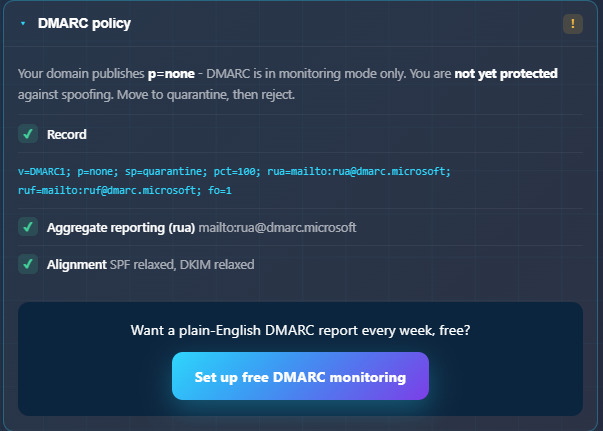
Whether your domain publishes DMARC and at what enforcement level: p=none (monitoring only), p=quarantine, or p=reject (spoofing actually blocked). If your subdomain has no DMARC record of its own, the panel shows a chip noting the policy is inherited from your organizational (root) domain - that is how DMARC works, and it is the policy that actually applies to this mail. If you are at p=none, our free DMARC Monitor is the safe path to enforcement.
BIMI - your brand logo in the inbox
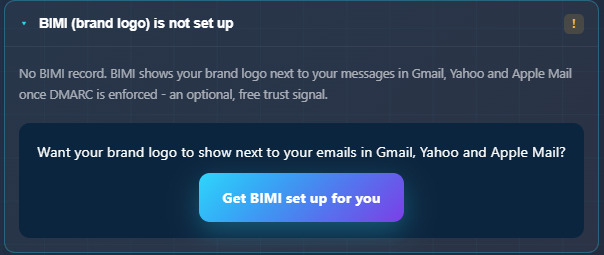
BIMI (Brand Indicators for Message Identification) puts your verified brand logo next to your messages in Gmail, Yahoo and Apple Mail - a visible trust signal that lifts recognition and open rates. It only works once DMARC is enforced (p=quarantine or p=reject), and for the blue verified checkmark most inboxes also want a VMC (a Verified Mark Certificate tied to a registered trademark). The report's BIMI panel previews your published logo and record, or - if you have not set it up - explains what it takes. BIMI is optional and never lowers your score; it is upside, not a requirement. When you want it, our BIMI setup guide walks the steps, and we can set it up for you.
Domain age
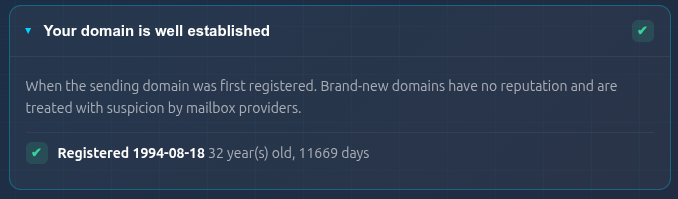
When your sending domain was registered. Brand-new domains carry near-zero reputation and get filtered harder everywhere - age is informational and never changes your score, but it explains a lot of cold-start pain.
Gmail & Yahoo sender requirements (2024)
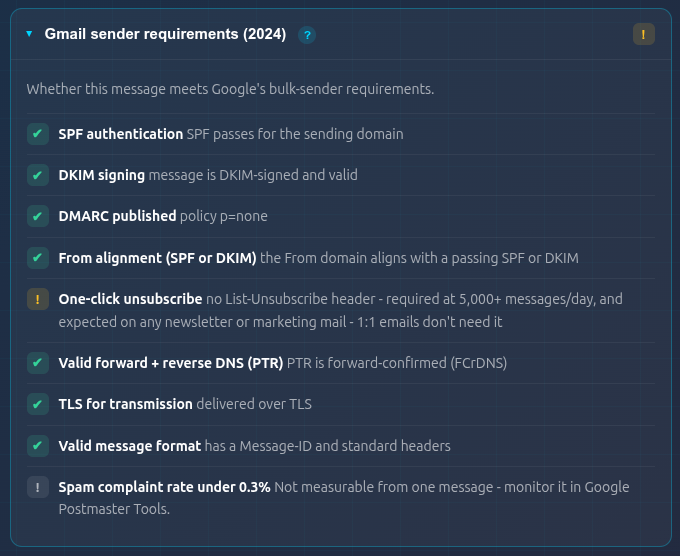
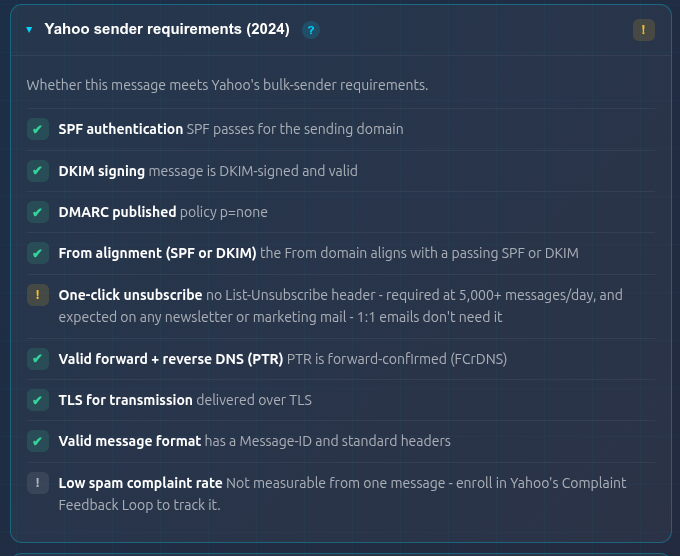
The bulk-sender checklist both providers enforce: authentication, alignment, a DMARC record, valid reverse DNS, TLS, one-click unsubscribe and a spam-complaint ceiling. Items the report cannot measure from one message (like your complaint rate) are marked as such rather than guessed.
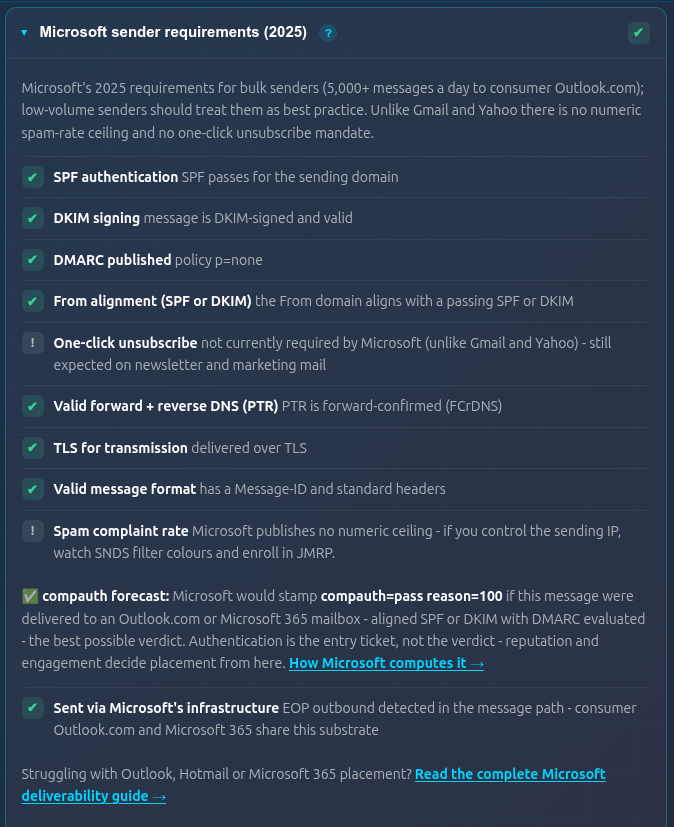
Microsoft sender requirements (2025) + compauth forecast
Microsoft's own 2025 bulk-sender rules, plus two things unique to Postbox Mailtester: a compauth forecast - the composite-authentication verdict Outlook.com / Microsoft 365 would stamp on this exact message - and Microsoft 365-specific findings read from the message path (tenant-default DKIM, onmicrosoft.com sending). The model comes from our complete Microsoft deliverability guide.
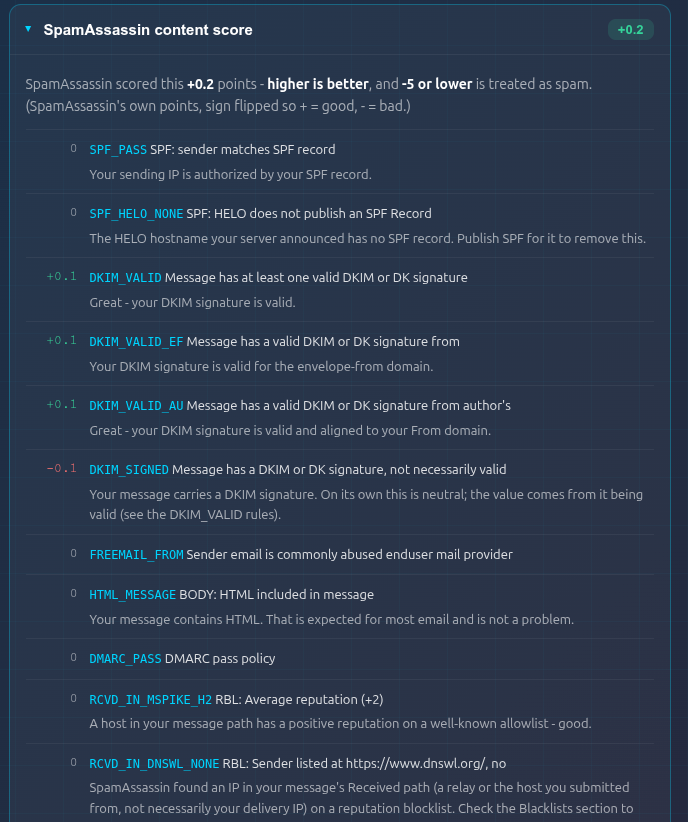
Spam content (SpamAssassin)
This panel is the spam score checker proper: your subject and body run through SpamAssassin - the same class of filter many receivers use. The report lists every rule your message triggered with its point value. It flips SpamAssassin's usual sign, so here the higher the total, the better, and -5 or lower is treated as spam. Fix the named rules, not vibes.
Content & formatting
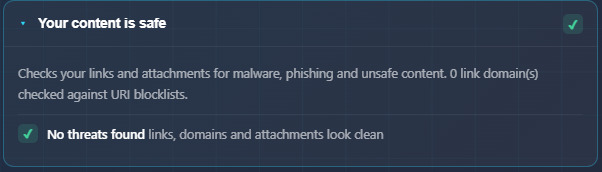
Message hygiene receivers quietly grade: a plain-text part beside your HTML, a List-Unsubscribe header, a sane image-to-text balance, safe links and a valid Message-ID. Individually small, together they separate "professional sender" from "template blast". A separate content-safety check then looks at your links and attachments three ways: it queries each link's domain against URI blocklists (Spamhaus DBL and SURBL - the lists that flag known spam, phishing and malware domains), flags links whose visible text points to a different domain (a classic phishing tell), and flags dangerous attachment types such as executables and macros. (It reads the domains and file types - it does not open attachments or run a virus scan.)
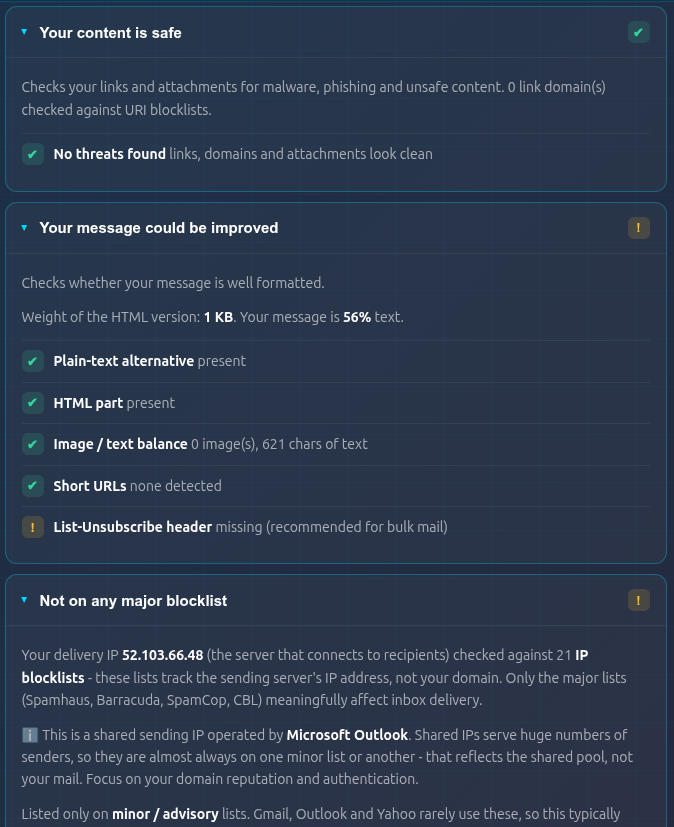
Blocklists
(Shown at the bottom of the capture above.) Your sending IP against 21 IP blocklists (these track the server that delivered your message, not your domain). An IPv6 sending IP is checked against fewer lists. Only the major lists - Spamhaus, Barracuda, SpamCop, CBL - meaningfully affect delivery. If you send through Google, Microsoft or an ESP, the report tells you when a listed IP is a shared pool IP: minor-list entries there reflect the pool, not you, and need no action. You can also check any IP or domain any time with our free blacklist checker.
Share your report and download the PDF
Every report has a private shareable link (valid 30 days, then deleted) and a Download PDF button that produces a branded multi-page audit - handy for clients, colleagues or your ESP's support ticket.
Part 3 - What to fix first
You no longer have to work this out yourself. The report's What to fix first panel - near the top, right under the score - builds a prioritized action plan from your actual results: each fix is ordered by the points it recovers, badged with who can act on it, and capped by your reachable score so you only chase points you can actually move. The order it follows is the one an expert would use:
- Red authentication items - aligned SPF and DKIM on your From domain. Nothing else matters until these pass.
- Major blocklist listings - Spamhaus-class hits need delisting before you keep sending.
- DMARC - publish at least p=none, then work toward enforcement (p=quarantine, then p=reject).
- Provider requirement warns - one-click unsubscribe for bulk mail, reverse DNS, TLS.
- Content - the named SpamAssassin rules, risky HTML, and formatting gaps.
Do the items badged you can fix first, then run a fresh test and watch both the overall score and the area bars move. Items badged your provider (shared IP) or only time (domain age) are expected - they are why your reachable score may sit just below a perfect 10, and they are not worth burning time on.
Run your free spam test
That is the whole workflow: one email, a score out of 10, and a prioritized list of exactly what to fix. It is free, needs no signup, and you can re-run it as many times as you like as you work through the fixes.
Run your free spam test now. If the report surfaces something you would rather not untangle alone, that is exactly what we do - talk to a deliverability consultant.
Frequently Asked Questions
Is the spam test really free?
Yes - it is completely free, with no signup, no login and no limits. You get a disposable test address, send one email to it, and read the full report. Run it as many times as you like as you work through the fixes.
What is the difference between a spam test and a full email deliverability audit?
A spam test is a quick, single-message snapshot: it grades the technical factors on one email you send - authentication, reputation, blacklists, spam-content and formatting - and tells you what to fix first. A full deliverability audit goes much deeper, reviewing your campaign and sending history, Google Postmaster and Microsoft SNDS reputation data, SMTP and bounce logs, list hygiene, and warmup and volume patterns that no single message can show.
How is the deliverability score calculated?
The score out of 10 combines authentication (SPF, DKIM and DMARC, including alignment), reputation (blacklists, reverse DNS and domain age), your SpamAssassin content score and message formatting. The report also shows three independent Area Health bars - Authentication, Reputation and Content - so you can see exactly where any problem lives. If you are specifically after a spam score checker, the SpamAssassin panel is that piece - the full content score, rule by rule.
Do I need to install anything or create an account?
No. There is nothing to install and no account to create. Open the tool, get your one-time test address, send a real email to it from the system you actually use, and the report appears within seconds.