Email Deliverability MCP Server
Use Our Email Tools From Your AI Assistant
The Postbox Services MCP server connects our free deliverability and security checks directly to Claude, ChatGPT, Grok, Cursor and any other AI that speaks the Model Context Protocol. Ask your assistant "is my domain blacklisted?" or "where does this link really go?" and it runs the real check on our infrastructure - live DNS, 24 blacklists, actual SMTP analysis - instead of guessing from training data. Free, no account, no API key.
https://mcp.postboxservices.com/mcpAlready connected? See it in action: 8 real examples, with screenshots →
Server name: Postbox Services - Email Deliverability & Security Tools · open access · fair-use limits · live since 26 September 2026
Why a live check beats asking the AI raw (Why do I need your Email Deliverability MCP server when I can ask my questions directly to AI?)
Ask an AI about your domain without a tool connected, and one of three things happens - none of them is a DNS query:
- It guesses. Your domain's DNS records and blacklist status are not in any training set - DNS zones are not crawled, and blacklists answer queries, they do not publish pages. A confident assessment of an SPF record the model has never seen is invention, not analysis.
- It searches the web - and search finds pages about your domain, not your DNS. At best the AI paraphrases a third-party checker's cached page, secondhand and as old as that page's last render. Blacklists change hour to hour; DNS records change whenever someone edits them.
- The careful ones decline - "I can't check live DNS." Accurate, and you still have no answer.
The advice layer is frozen too: a model trained before its cutoff may still recommend the pct= tag (removed from DMARC in RFC 9989) or quote sender rules that changed in 2024.
With this server connected, the guessing stops. That is what MCP email tools are for: instead of remembering, the AI measures - a DMARC MCP check reads the record that exists right now, a blacklist check queries all 24 lists at the moment you ask, a mail test analyzes a real message you just sent. Ground truth, in the chat, with a link to the full report.
claude.ai / Claude Desktop ✓ verified, with screenshots
These are the same product surface: connectors attach to your Claude account, and chats sync between the browser and the Desktop app - set it up once, use it in both. (Screenshots below are from the Desktop app on Linux; the browser dialogs are identical.)
Easiest: connect from the directory (one click)
We are now in Claude's Connectors Directory. In Claude, open Settings → Connectors → Discover, search Postbox, open Postbox Services: Email Deliverability & Security Tools, and click Connect to Claude - or open the listing directly. No URL to paste.
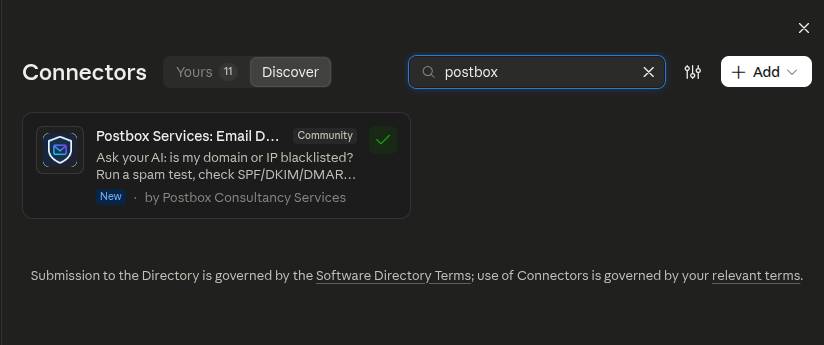
Prefer to add it by URL? That still works:
- Open claude.ai → your initials (bottom-left) → Settings → Connectors.
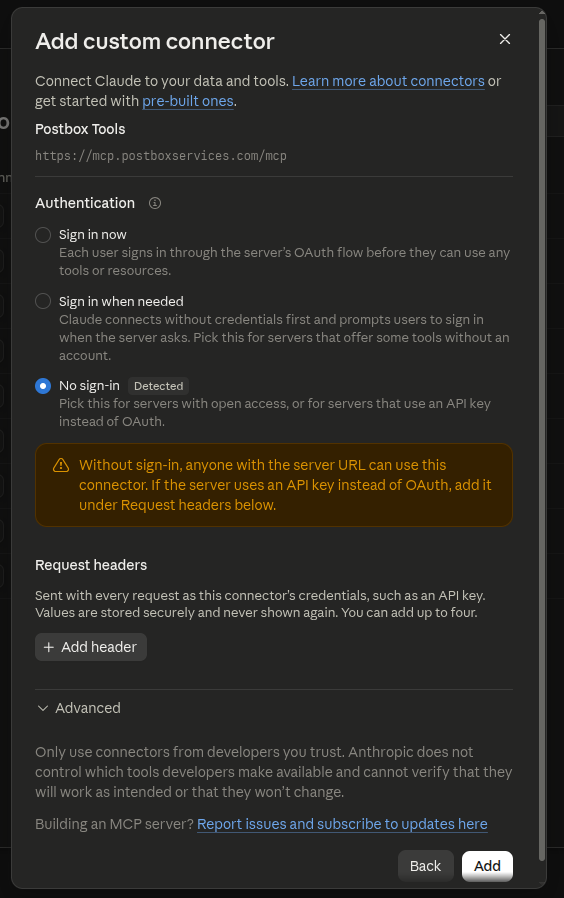
- Click Add custom connector. Name it
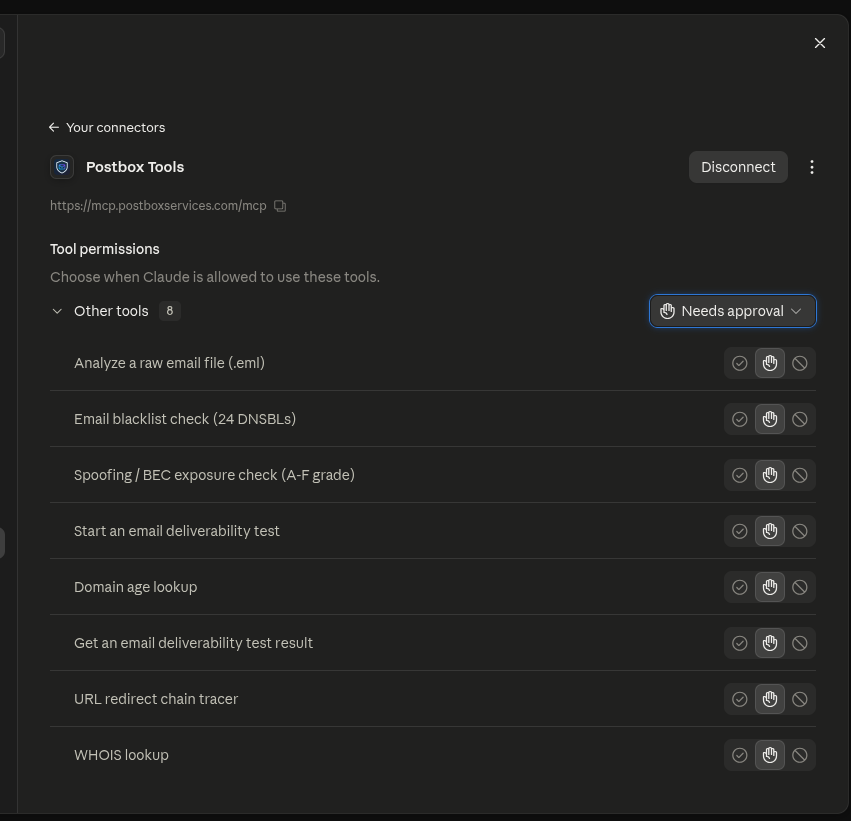
Postbox Tools, pastehttps://mcp.postboxservices.com/mcp, and leave authentication on No sign-in (claude.ai auto-detects this - our server has open access by design). - Click Add. You will see all 10 tools listed with a permission setting each - Needs approval (Claude asks before each use) is a fine default; set the read-only checks to Always allow for smoother sessions.
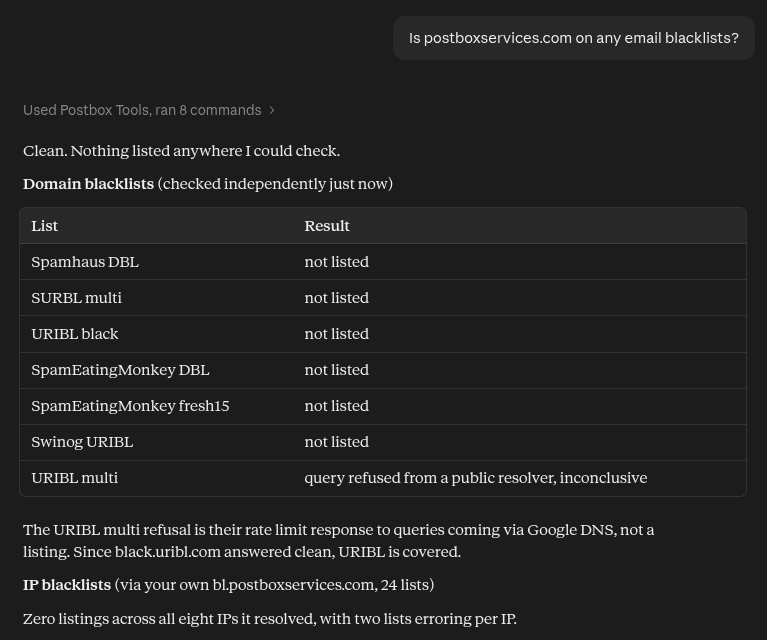
- In any new chat, open the tools menu near the message box, enable Postbox Tools, and ask away.
Claude Code (terminal) ✓ verified
One command, then the tools are available in your coding sessions (handy for checking a client's domain without leaving the terminal):
claude mcp add --transport http --scope user postbox-tools https://mcp.postboxservices.com/mcp
Confirm with claude mcp list - you should see postbox-tools ... ✓ Connected. Remove any time with claude mcp remove postbox-tools.
Cursor
Add the server to ~/.cursor/mcp.json (create the file if it does not exist), then restart Cursor. The tools appear in the Composer/Agent tool list:
{
  "mcpServers": {
    "postbox-tools": {
      "url": "https://mcp.postboxservices.com/mcp"
    }
  }
}
Standard Cursor remote-MCP config; verified run + screenshot coming.
ChatGPT ✓ verified, with screenshots
Use the web app (chatgpt.com) - in our testing (September 2026) it has the smoothest flow; the desktop app can manage MCP servers but lagged on exposing them in chats.
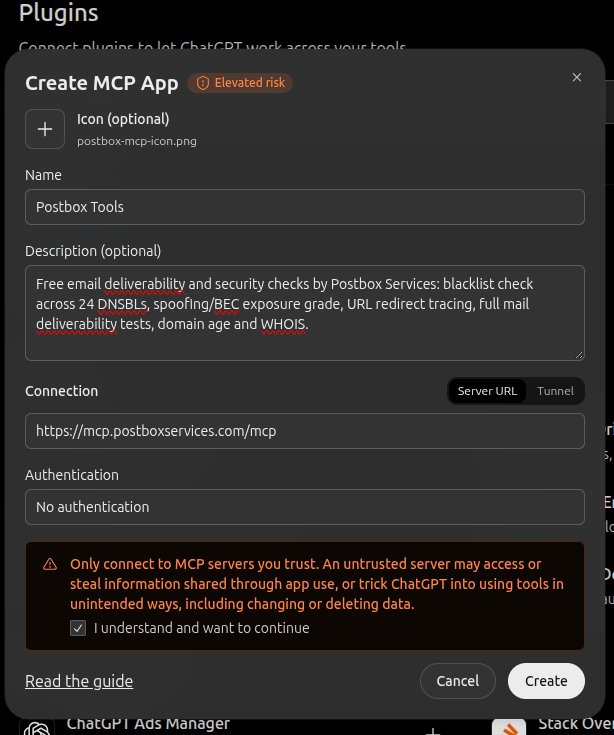
- chatgpt.com → Plugins (sidebar) → Add ▾ → Add custom MCP server.
- In the Create MCP App dialog: Name
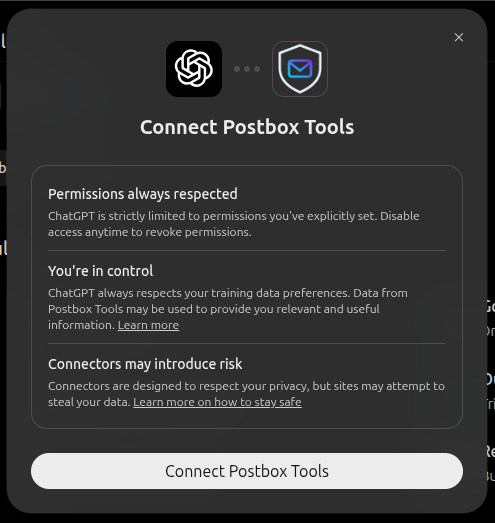
Postbox Tools, paste the server URLhttps://mcp.postboxservices.com/mcp, and set Authentication: No authentication (it defaults to OAuth - our server needs none). Optionally add a description and our official icon: download the 128px PNG (5 KB). Tick the trust confirmation and Create. - First use shows a one-time Connect Postbox Tools consent - approve it.
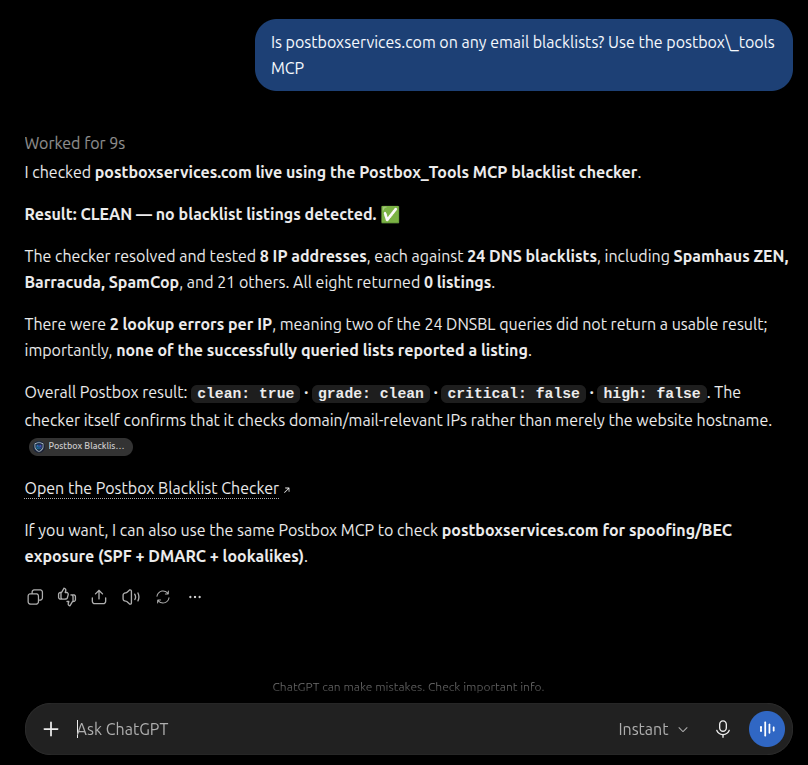
- Ask away. Tip: mentioning the tool by name ("...use the postbox_tools MCP") makes ChatGPT reach for it reliably; different models phrase the answer differently, but the underlying check is identical.

Connected before 5 November 2026? ChatGPT keeps the tool list from when you connected, so disconnect and reconnect Postbox Tools to see the two new tools (check_bimi and check_ai_discoverability). Other apps may need the same.
Using the ChatGPT desktop app instead?
Its dialog is Plugins → Add → Add MCP server → "Connect to a custom MCP", and it defaults the Type to STDIO - switch it to Streamable HTTP BEFORE saving (paste https://mcp.postboxservices.com/mcp in the URL field). ChatGPT does not let you change the type later without uninstalling. In our tests the desktop app registered the server fine (it appears under the MCPs tab) but chats there did not always expose it - if that happens, chat on the web app; the server is shared account-wide.
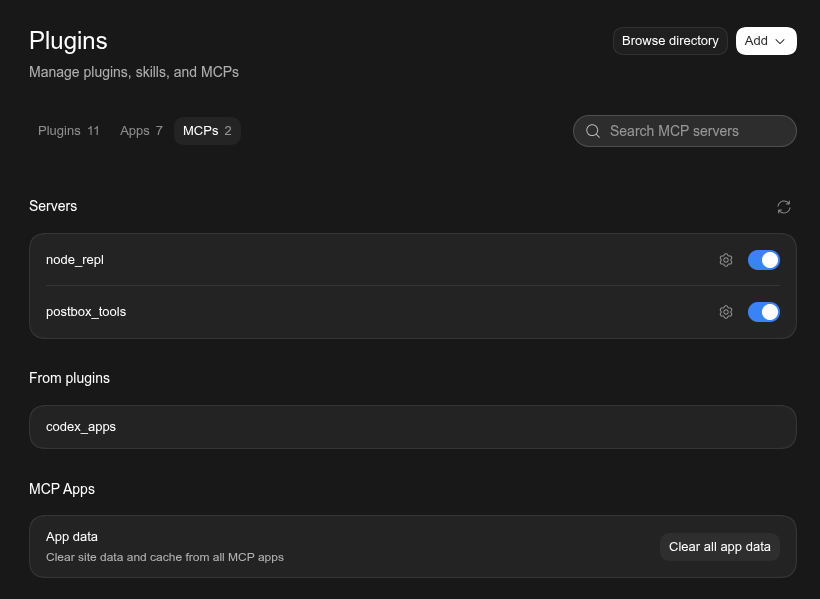
postbox_tools registered and enabled.Grok ✓ verified, with screenshots
- In Grok, open Settings → Connectors and choose Custom Connector.
- Name:
Postbox Tools, Server URL:https://mcp.postboxservices.com/mcp→ Add Connector. Grok lists all 10 tools as enabled. - Ask in plain words - "Use Postbox Tools to check if mydomain.com is on any email blacklists" - and Grok calls the tool and answers from the live result.
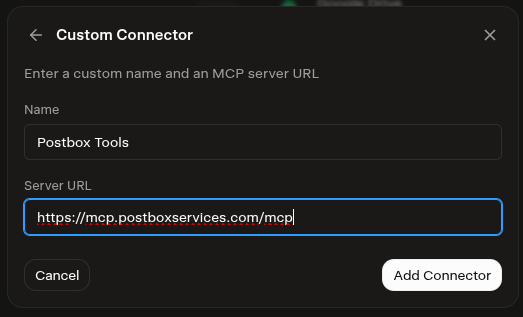
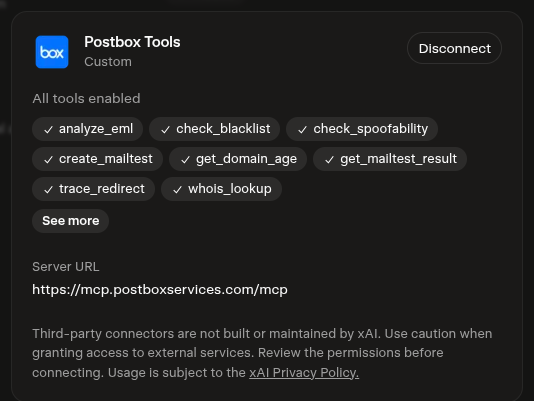
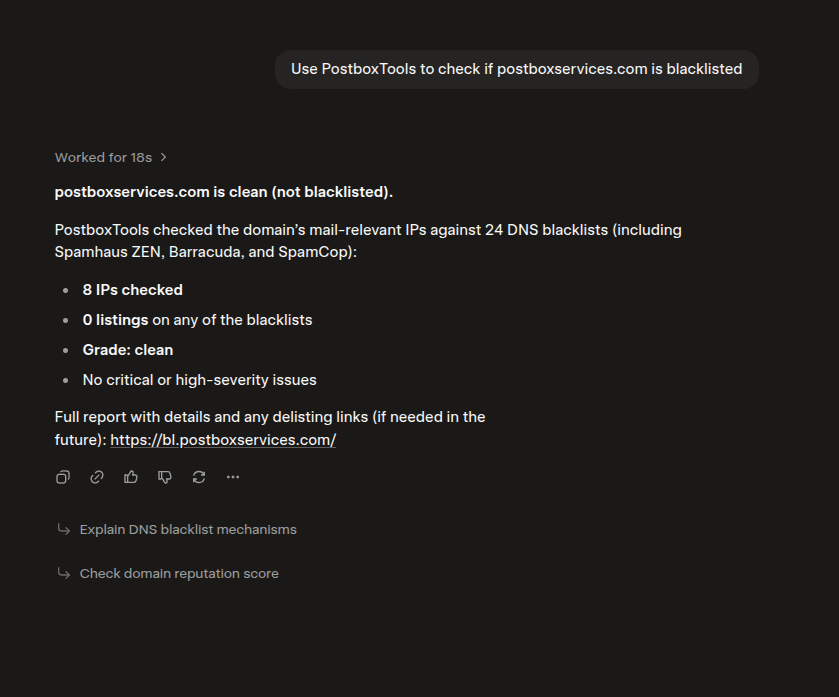
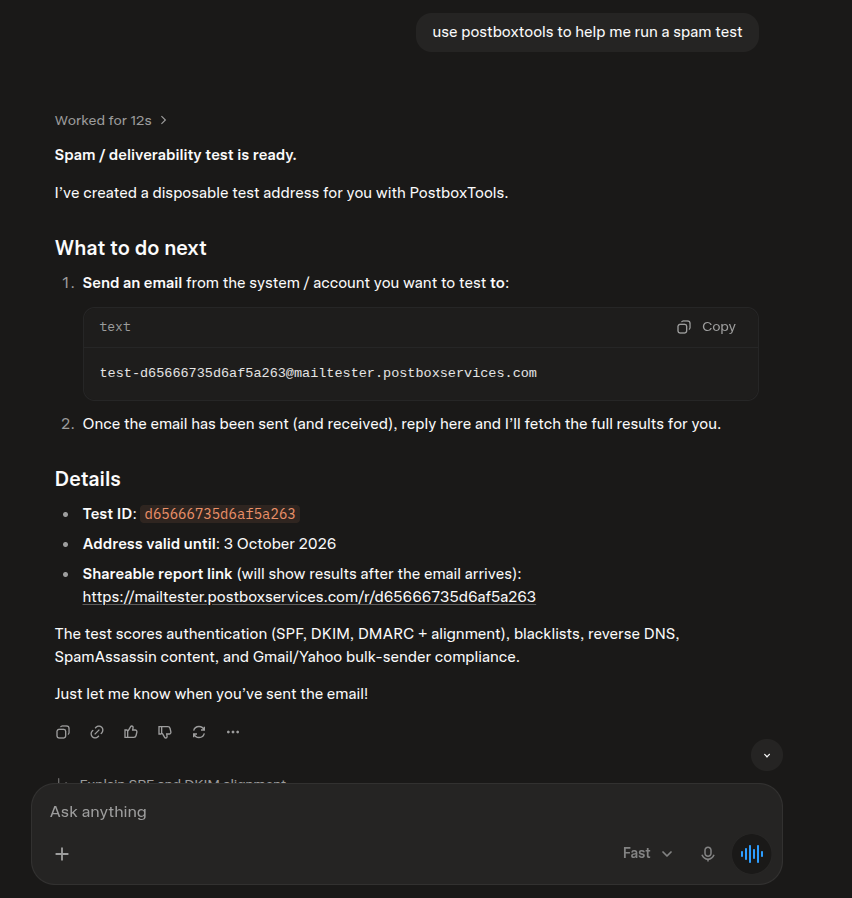
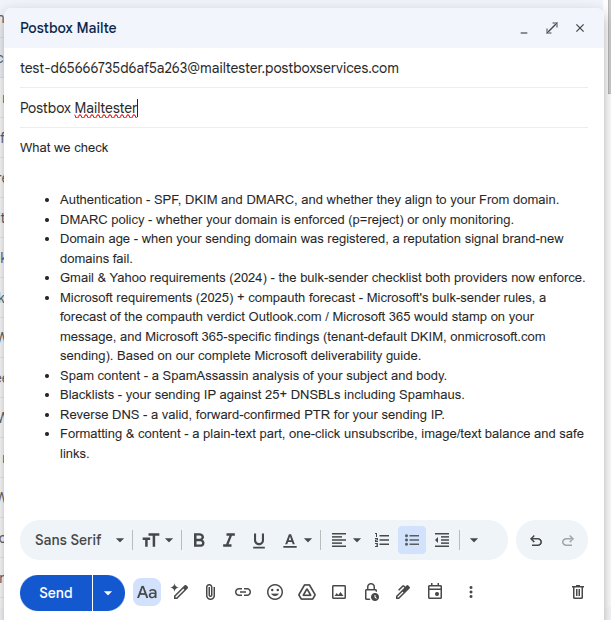
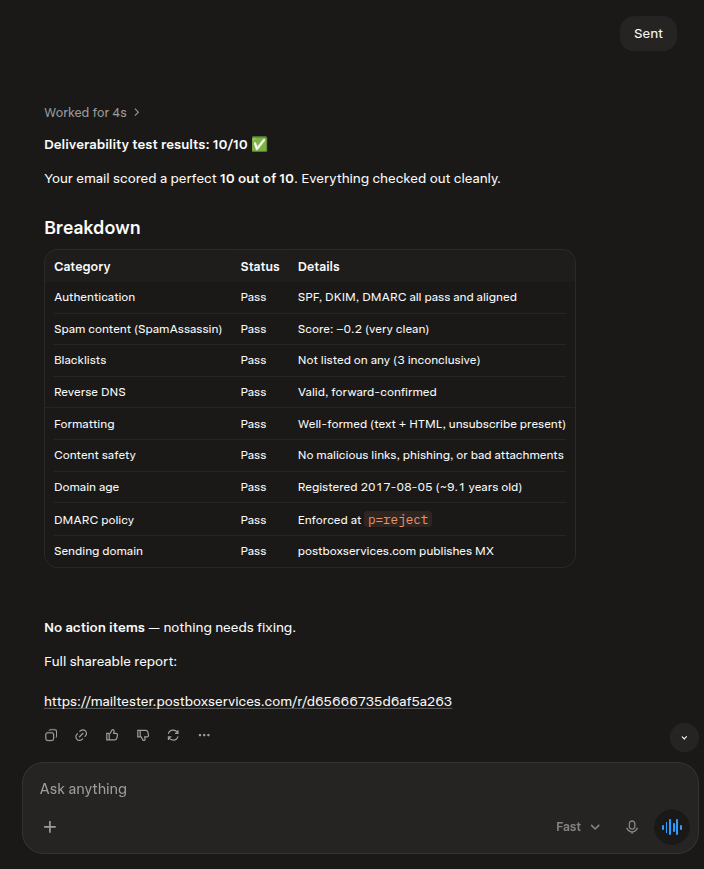
The two-step full deliverability test works from Grok too: ask for a spam test, send one email from your own account to the disposable address it hands you, then ask for the score.
The 10 tools your AI gets
| Tool | What it does | Powered by |
|---|---|---|
check_blacklist | Checks a domain against domain blacklists (Spamhaus DBL, SURBL, URIBL and more), or an IP against 24 IP blacklists (Spamhaus ZEN, Barracuda, SpamCop and more); checks the exact target given Try: “Is acme.com on any email blacklists?” | Postbox Blacklist Check |
check_spoofability | Grades how exposed a domain is to spoofing and BEC, A to F, from its public DNS Try: “Could someone send phishing emails pretending to be acme.com? Grade it.” | Postbox Spoof Check |
trace_redirect | Follows a URL through every redirect hop to its real destination, with phishing flags Try: “Where does this shortened link actually go: https://bit.ly/xyz” | Postbox Redirect Checker |
create_mailtest | Two-step test, step 1: mints a disposable address - YOU then send a real email to it from the system you want tested (nothing happens until you do) Try: “Run a spam test for my newsletter setup” | Postbox Mailtester |
get_mailtest_result | Two-step test, step 2: after your email arrives, fetches the /10 score, breakdown and action plan Try: “I have sent the test email - what is my score?” | Postbox Mailtester |
analyze_eml | Analyzes a raw .eml file (headers + content) when you cannot send a live email Try: “Here is a bounced email file - why did it land in spam? (attach the .eml)” | Postbox Mailtester |
get_domain_age | Registration date and age of a domain (young domains = weak sending reputation) Try: “How old is the domain acme.com?” | Postbox Mailtester |
whois_lookup | Registrar, created/expires dates, nameservers, DNSSEC and status flags Try: “Who is the registrar for acme.com and when does it expire?” | Postbox Mailtester |
check_bimi | Looks up a domain's BIMI record, validates the logo against the SVG Tiny P/S profile and reports whether a certificate (VMC or CMC) is referenced. It does not verify the certificate, and DMARC is a separate check (use check_spoofability) Try: “Does paypal.com have a valid BIMI setup?” | Postbox MX Tools |
check_ai_discoverability | Grades a website A to F on how visible it is to AI answer engines, from robots.txt access for each major AI crawler and its sitemap, with llms.txt and ai.txt as informational signals Try: “How discoverable is postboxservices.com to AI search engines?” | Postbox AI Discoverability Checker |
Every answer includes a link to the full report on the tool's own site - the AI gives you the summary, the report gives you every detail, shareable.
See eight of them in action: 8 real examples from ChatGPT, Claude and Grok, with a screenshot of each check.
Try these prompts once connected
- "Is mydomain.com on any email blacklists?"
- "How spoofable is mydomain.com? Can someone send phishing as us?"
- "Where does this link actually go: [paste any shortened URL]"
- "Run a deliverability test for my newsletter" - then send one email to the address Claude gives you and ask for your score.
- "Here is a bounced email file - why did it fail?" (attach the .eml)
- "Does mydomain.com have a valid BIMI setup?"
- "How discoverable is mydomain.com to AI search engines?"
Data handling
We built this server the way we advise clients to build theirs, so here is the policy in plain words:
- Email files are never stored.
analyze_emlprocesses the raw email in memory, returns the result, and discards it - nothing is written to disk, nothing is cached, and there is no way to retrieve a submitted file afterwards. - Deliverability-test reports (
create_mailtest) work exactly like the web tool: the report lives at its private link for 30 days, then is permanently deleted. - Domain, IP and URL check results are cached (keyed only by the input, never personal data or message content) so repeated lookups stay fast, and are automatically expired.
- Logs hold request metadata, not content: client IP, tool name, timestamps and fair-use counters, kept only as long as abuse control needs them. Message content never appears in any log.
- URL tracing is SSRF-hardened. Server-side fetching validates every redirect hop, not just the submitted URL - private, loopback and link-local ranges are blocked at each step, only http/https on standard ports is followed, and all fetching runs on isolated infrastructure.
- No accounts, no API keys, no stored conversations. We see the check input your AI sends - the domain, IP, URL or email file - and nothing else about your chat.
Frequently asked questions
What is an MCP server?
MCP (Model Context Protocol) is an open standard that lets AI assistants use external tools. Connecting an MCP server to Claude or another assistant is like handing it a toolbox: when you ask a question the tools can answer, the AI calls them and builds its reply on live data instead of memory. Our server exposes the Postbox Services free deliverability and security checks as 10 such tools.
Is it really free? Do I need an account?
Yes, free, and no account - the server has open access by design, the same as our web tools. Fair-use limits apply (per-client rate limits and daily service ceilings) so the free service stays fast for everyone.
What data do you see when my AI calls a tool?
Only the check input itself - the domain, IP, URL or email file the tool needs - plus standard request metadata. Email files submitted to analyze_eml are processed in memory and never stored; test reports are deleted after 30 days; logs hold metadata only, never message content. Full details in the Data handling section above.
Why do results sometimes show links written like hxxps://evil[.]com?
Deliberate safety: URLs of third-party sites in our tool summaries are defanged so a malicious link can never ride an AI answer as something clickable. Links to our own full reports stay live.
Which AI apps work with it?
Anything that speaks remote MCP over Streamable HTTP. Verified so far: claude.ai and Claude Desktop (one shared connector - verified together), Claude Code, ChatGPT (web app) and Grok. Cursor instructions are below; verification screenshots coming.
My AI says a tool hit a limit - what happened?
You met one of the fair-use guards: a per-minute rate limit, a daily per-tool ceiling, or the bulk-scanning cap (checking many different domains from one client in a day). Wait and retry, use the web tool directly, or contact us for legitimate bulk needs.