6 AI Prompts That Check Your Email Deliverability and Explain the Results
Not so long ago, checking your email deliverability was a project in itself. You had to learn how DNS records like SPF, DKIM and DMARC work, put together a handful of separate tools, run test after test, and then compile all the results yourself, just to answer one simple question: are my emails reaching the inbox? Today that work has shrunk to a fraction, and AI prompts for email deliverability are the reason. Type a good prompt into Claude or ChatGPT and things start taking shape in front of your eyes: the checks run, the results come in, and the AI explains them in plain words. Here are six AI prompts for email deliverability that you can copy and use today.
There is one small catch. On its own, an AI can't see your DNS records or your blacklist status, so it can only guess. Connect it to a free live checking tool and it stops guessing: it runs the checks first and explains them second. That takes about two minutes, and the box below shows you how.
After that, copy any prompt, change the domain to yours, and in a few minutes you'll know where your email stands and what to fix first. You don't need to be a DNS expert to start.
Before you start, connect the free Postbox Services MCP server (2 minutes, no account)
- In Claude, open Settings, then Connectors, then Discover, and search "postbox". In ChatGPT, Grok or Cursor, add this address as a custom MCP server:
https://mcp.postboxservices.com/mcp - Approve the tools the first time your AI asks to use them.
- Paste any prompt below.
Step-by-step setup for each app: Connect the MCP server. Want to see the tools on their own first? 8 real examples, one per question.
The 6 AI prompts for email deliverability at a glance
| # | Check | What it tells you | Tools the AI uses |
|---|---|---|---|
| 1 | The 60-second domain health check | Is my domain clean, protected and trusted? | Blacklist, spoofing grade, domain age |
| 2 | The spam test, explained line by line | What is my real score, and what costs me points? | Spam test (create + result) |
| 3 | Why did this email go to spam? | What in this message or its headers looks bad? | .eml analysis, IP blacklist, spoofing grade |
| 4 | Check every link before I hit send | Do my links land where I think, and are they clean? | Redirect trace, domain blacklist |
| 5 | Is my new domain ready for cold email? | Can I start sending, or should I wait? | Domain age, spoofing grade, blacklist, spam test |
| 6 | Can my logo show up in the inbox? | Is my BIMI setup right, and what is still missing? | BIMI check, spoofing grade |
The full prompt to copy is in each section below. They work in ChatGPT, Claude and Grok, and the answers will look a little different in each. Every section says which AI we used for its screenshots.
Prompt 1: The 60-second domain health check
If you only try one prompt today, make it this one. In about a minute you'll know three things: whether your domain is on a blacklist, whether someone could fake it, and whether it's old enough to have built up some trust.
What your AI does: it runs three tools: the domain blacklist check, the spoofing grade and the domain age lookup.
What came back for postboxservices.com (6 Nov 2026):
- Blacklists: clean on all 6 domain lists checked.
- Spoofing grade: B. DMARC is at
p=reject, SPF ends in-all, and MTA-STS and BIMI are present. The one gap: 3 live lookalike domains (postboxservice.com, postboxservices.net, postboxservices.in). - Domain age: registered August 2017, about 9.3 years old.
The screenshots for this prompt are from ChatGPT.
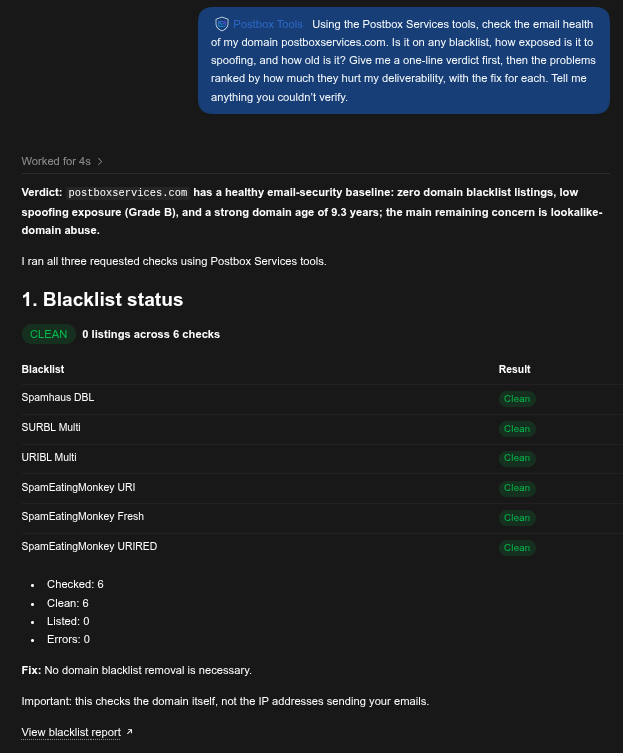
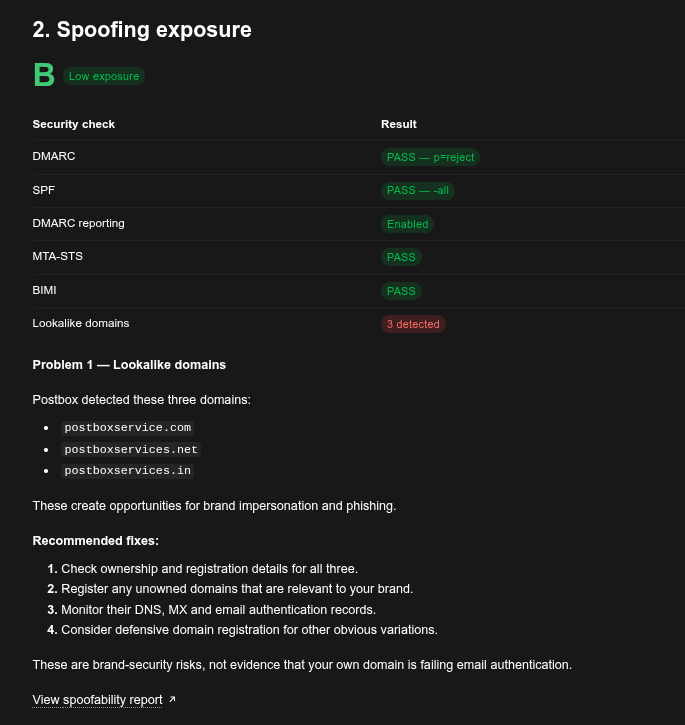
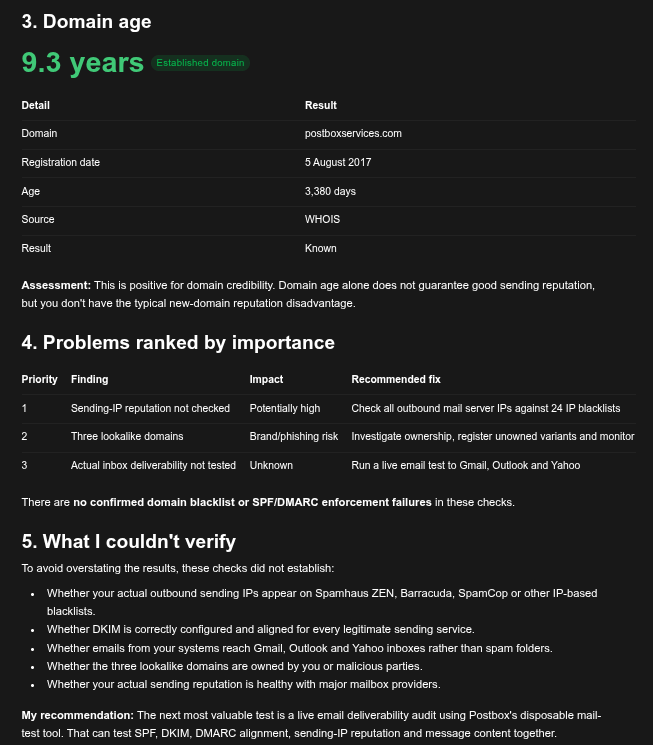
How to read it: a clean blacklist result and an enforced DMARC policy are the two things to look for first. Our B comes from the lookalike domains alone, and no DNS setting can stop someone registering one of those. If your grade is D or F, fix DMARC before anything else. Our SPF, DKIM and DMARC guide shows how.
What it couldn't verify, and where to find out: the prompt asked for this, so the answer ends with an honest list. That isn't a weakness. This prompt looks at your domain, not at an email you actually sent, and ChatGPT's own recommendation is the right next step: run a live test with Postbox Mailtester, which is Prompt 2. That settles the first two items below. The others need a different source.
| What it couldn't verify | Where to find out |
|---|---|
| Are your sending IPs on an IP blacklist? | Prompt 2: the spam test checks the IP that delivered your test email |
| Are DKIM and alignment right for every sending service? | Prompt 2: run one test from each service you send with |
| Do your emails reach the inbox at Gmail, Outlook and Yahoo? | Prompt 2 shows whether anything obvious would trip a filter, but only a seed or inbox placement test shows where mail lands. Our comparison of spam testing tools explains the difference |
| Who owns the lookalike domains? | Check your own registrar account first. Ask your AI for a WHOIS lookup on the rest, though many domains hide their owner |
| Is your sending reputation healthy? | Google Postmaster Tools for Gmail |
Tip: you can compare yourself with a competitor too. In the same chat, ask "compare example.com with competitor.com on all above parameters and draw a table". Your AI runs the same checks on both domains and puts them side by side. We tried it below in ChatGPT. We picked competitor.com only for its name: it's a real domain, and these are its public records on 6 Nov 2026.
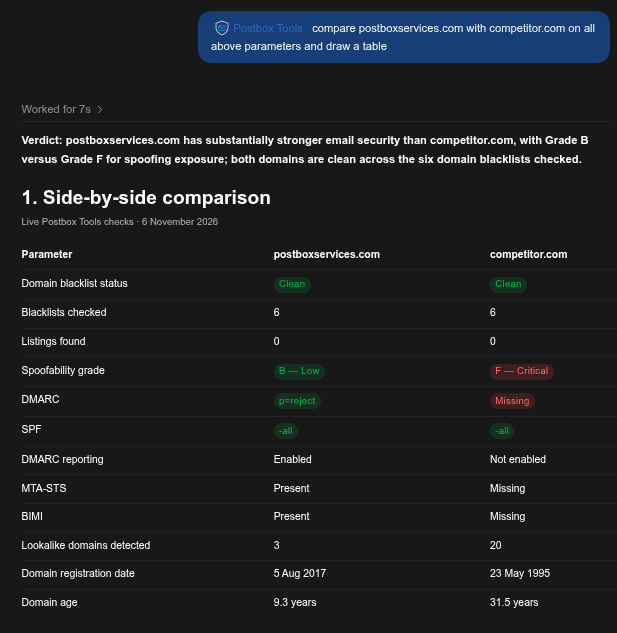
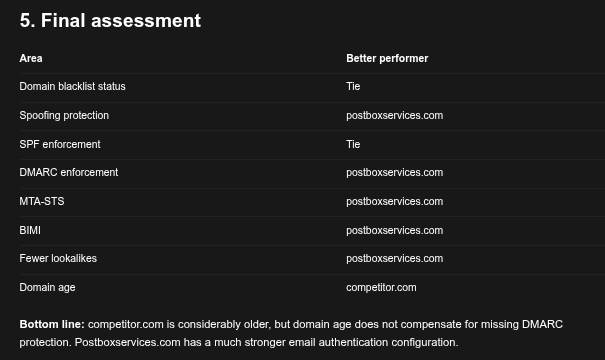
Full reports: Blacklist Check and Spoofing & BEC Check
Prompt 2: The spam test, explained line by line
Your DNS records can look perfect and a real email can still lose points. Some problems only show up once you actually send something, including the sending IP and DKIM questions Prompt 1 couldn't answer. This prompt runs a full spam test on a real email, then walks you through the result one line at a time.
What your AI does: it creates a one-time test address. You send a normal email to it from the account you want to test: your newsletter tool, your CRM or your own mailbox. Then you type "sent" and the AI fetches the score.
What came back for our test email (6 Nov 2026): a perfect 10 out of 10, so there were no deductions to explain. On your own test, any deductions are explained here, biggest first.
The screenshots for this prompt are from Claude.
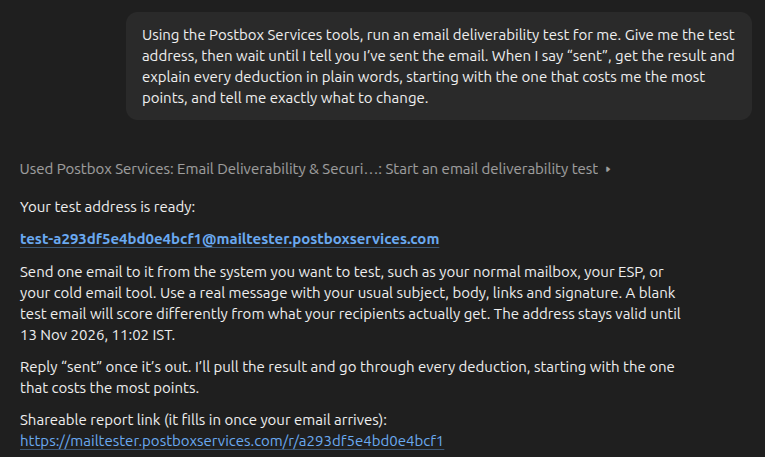
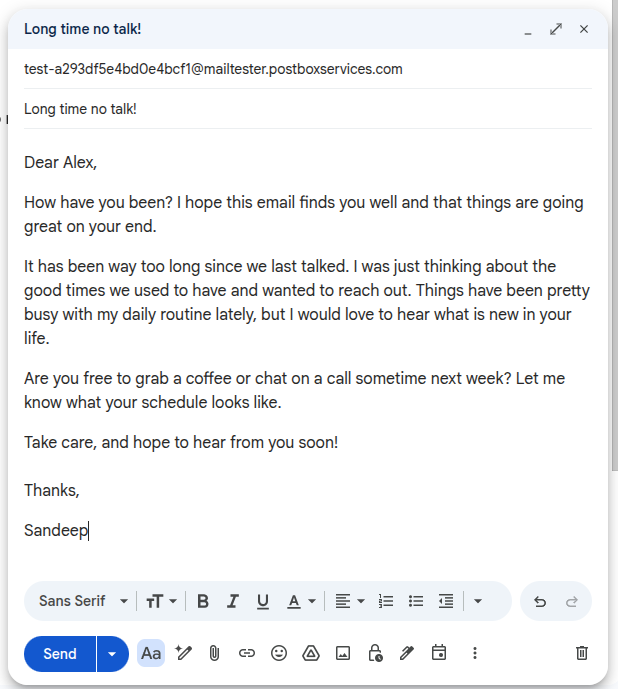
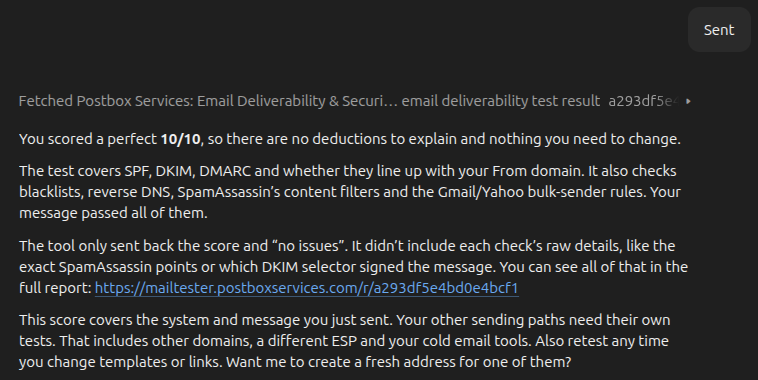
Want the full detail? Open the report link. We also asked Claude "Show me results in full". We had Claude in Chrome connected, so it opened the report page and laid it out for us. Without a browser connector, your AI may only have the summary.
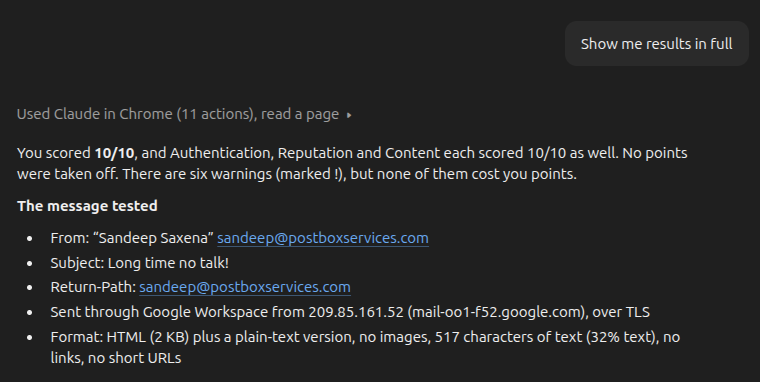
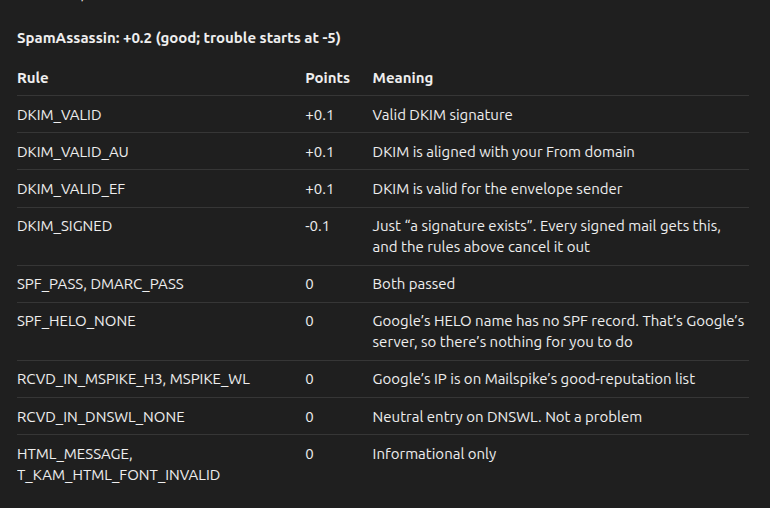
How to read it: the score is out of 10 and combines authentication (SPF, DKIM, DMARC and alignment), reputation (blacklists, reverse DNS and domain age), your content score and message formatting. A 9 or 10 means technically clean, 7 or 8 means there are issues you can correct, and below 7 means something is actively hurting delivery. The report also checks the Gmail and Yahoo sender requirements.
Know the limit: your AI's answer is a summary, so open the full report link it gives you as well, even after a good score. That page has the line-by-line detail, like the exact content score and the sending IP. And a clean result covers this one message from this one system, so test each tool you send with.
Tip: test the exact email you are about to send, from the exact tool that will send it. A test from your Gmail tells you nothing about your Mailchimp setup.
Full report: Postbox Mailtester
Prompt 3: Why did this email go to spam?
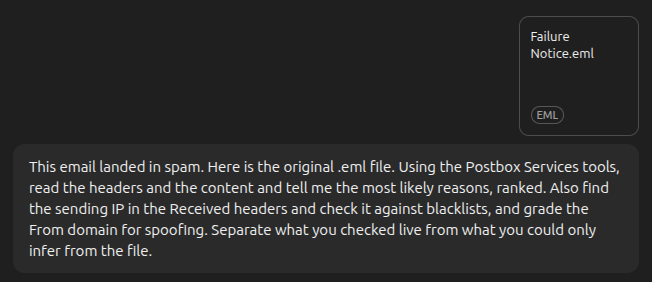
You spent an hour on an email and it landed in spam. It's frustrating, but the good news is that the email itself holds a lot of clues. Download it as an .eml file and give it to your AI. In Gmail, open the three-dot menu on the message and choose "Download message". Most other mail apps have a similar option.
What your AI does: it runs the .eml analysis, then a blacklist check on the IP it finds in the headers and a spoofing grade on the sender's domain.
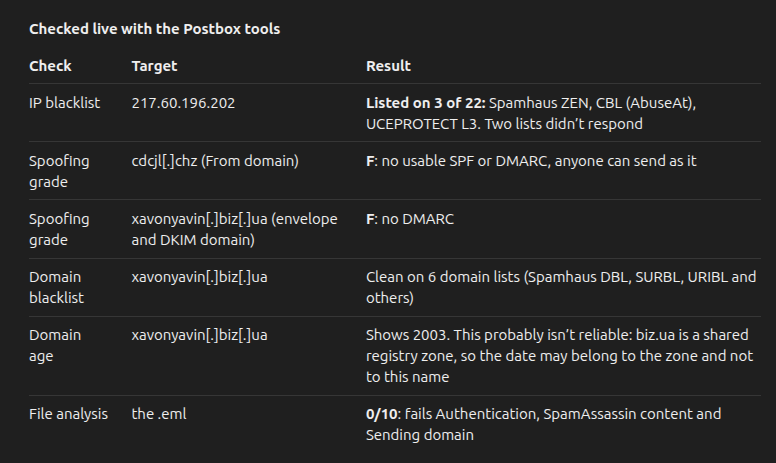
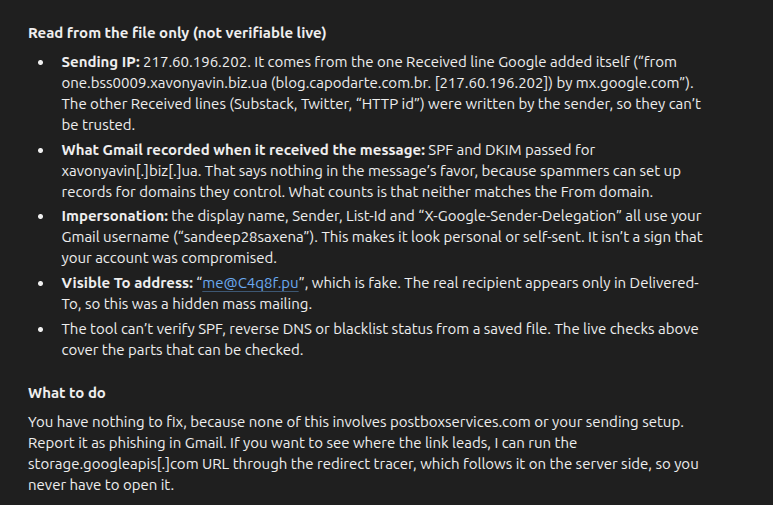
What came back for a real phishing email from our spam folder (6 Nov 2026): Claude ranked seven likely reasons and marked each one as checked live or inferred from the file. The strongest was a live result: the sending IP was listed on 3 of the 22 blacklists that answered, including Spamhaus ZEN and CBL. The From domain got an F, with no SPF or DMARC. The file itself showed fake Received headers and hidden filler text. Claude also told us not to click anything and to report the email as phishing.
The screenshots for this prompt are from Claude.
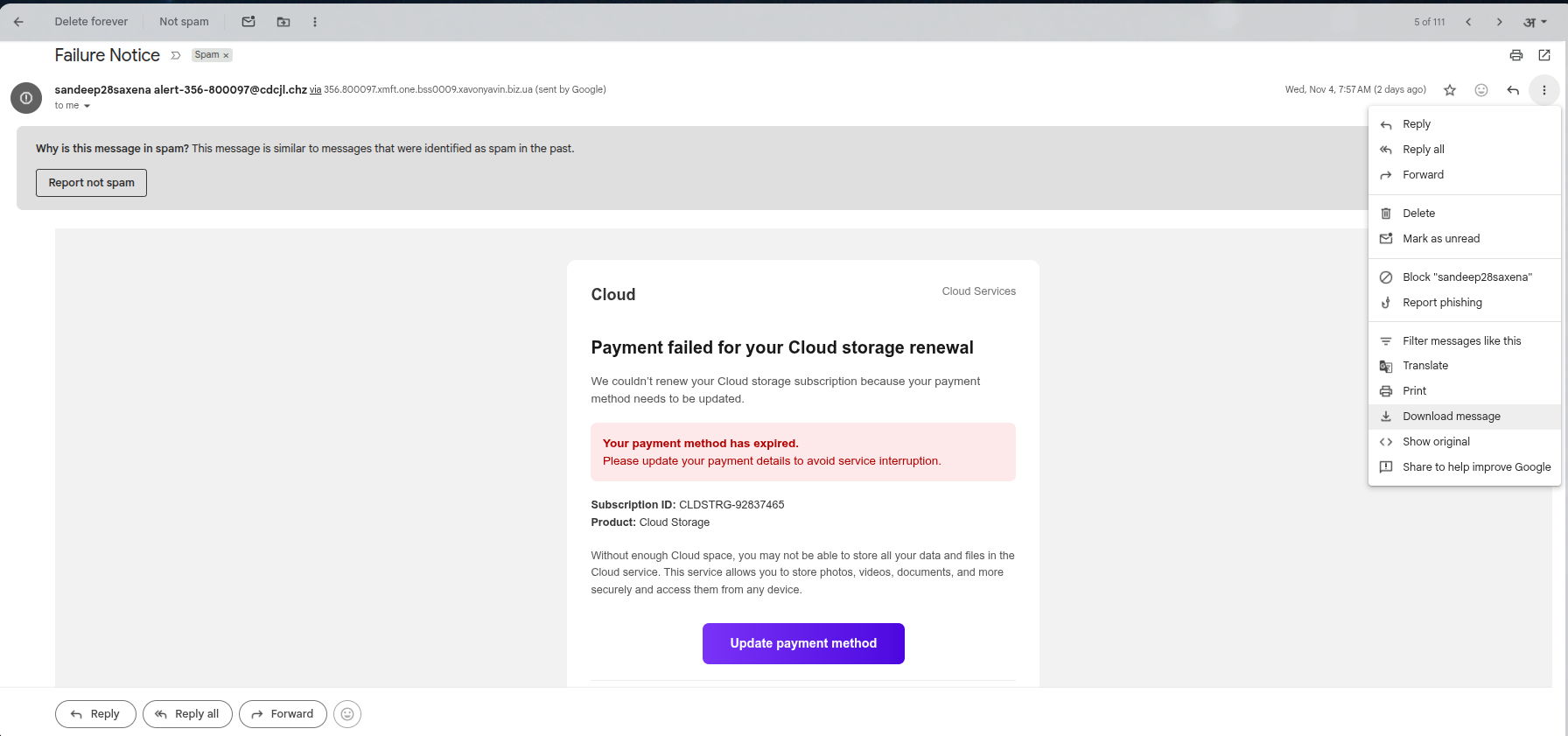
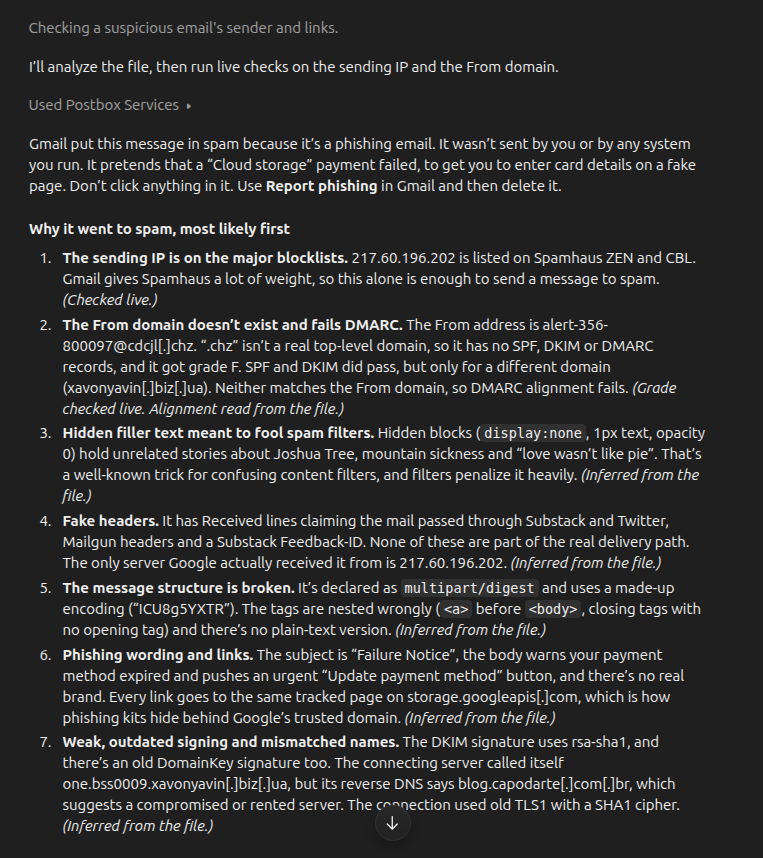
How to read it: look at the authentication results in the headers first. A DKIM or DMARC failure is the first thing to fix. If authentication passes and the IP is clean, the cause is more likely the content or your sending reputation with that mailbox provider.
Know the limit: from a file, SPF, blacklists and reverse DNS can't be checked as they were when the email was sent. That is why the prompt asks for a live check on the IP, and why Prompt 2 is the final word on your score.
Stay safe: if your AI says an email is phishing, don't click anything in it, and report it to your mail provider.
Full report: Postbox Mailtester
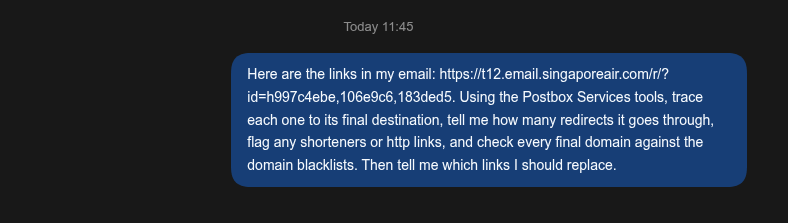
Prompt 4: Check every link before I hit send
Most of us read our subject line ten times and never look at our links. Spam filters do look at them. One link to a blacklisted domain, or a chain of redirects through a link shortener, can work against a good email.
What your AI does: it runs the redirect trace on every link, then the domain blacklist check on each final domain.
What came back for a tracking link from a Singapore Airlines marketing email in our inbox (6 Nov 2026): 2 hops, all over HTTPS. The t12.email.singaporeair.com tracking link redirects once to www.krisshop.com, which returned HTTP 200 and is clean on all 6 domain blacklists. The tool raised one flag, final_domain_differs, because the link ends on a different domain from where it started. The AI's verdict: keep it, as long as this is the promotion you meant to send.
The screenshots for this prompt are from ChatGPT.
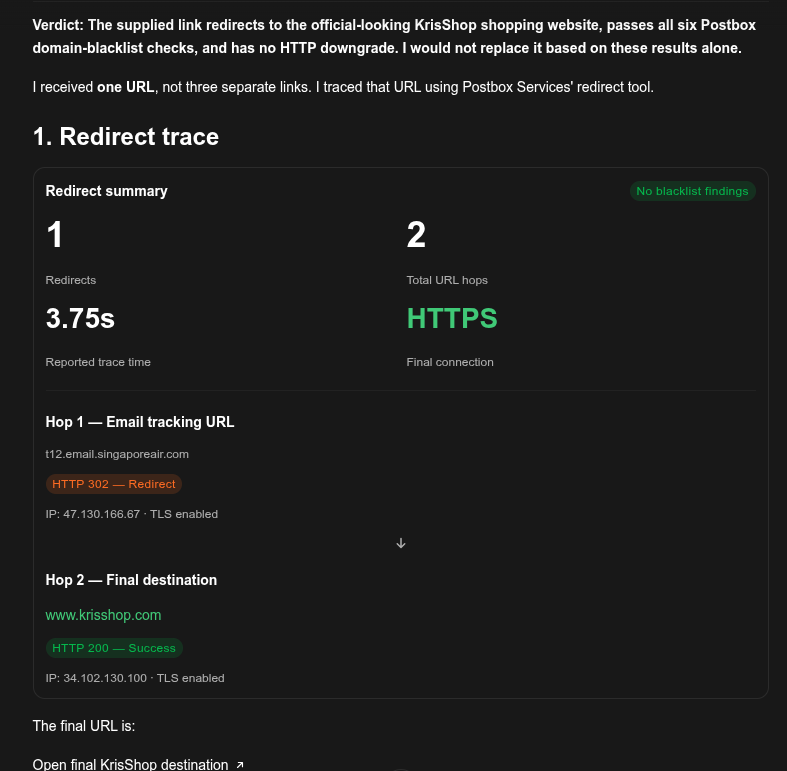
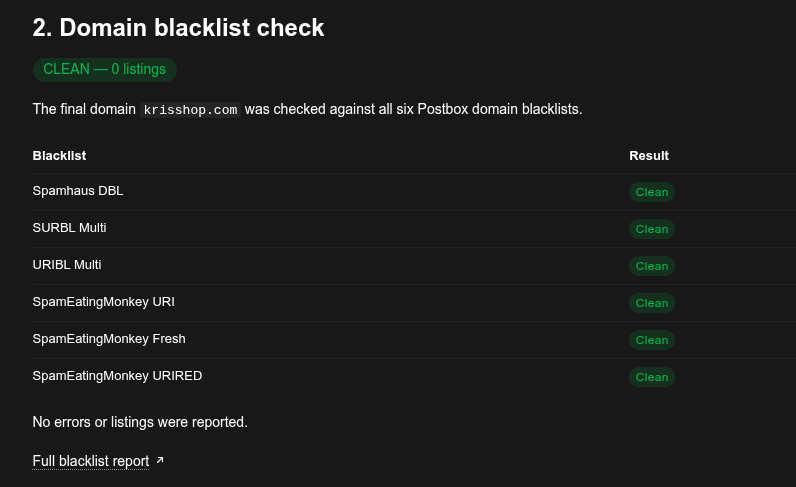
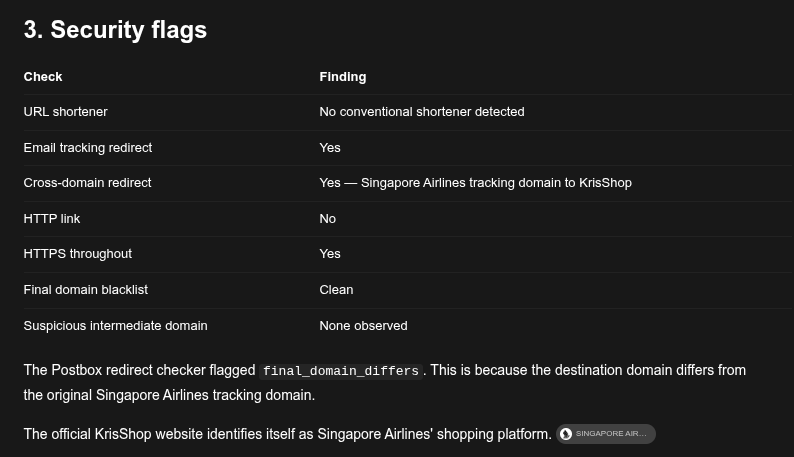
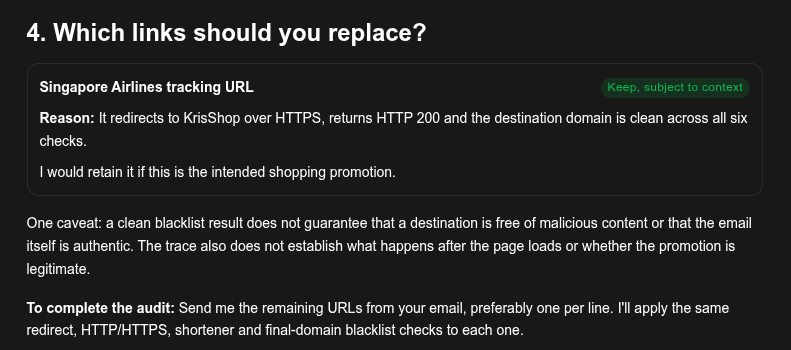
How to read it: one or two hops are fine. Watch out for shorteners (bit.ly and similar), long redirect chains, a jump to a different domain, and any final domain that appears on a blacklist. Use the full https link to your own site wherever you can.
A flag isn't automatically a problem. Email tools often send links through a tracking domain, as this one does, so just confirm that the final domain is the one you meant to link to. And a clean result only means the domain isn't on these lists. It doesn't prove the page is safe.
Tip: paste one link per line, so your AI can tell where each one starts and ends.
Full report: Postbox Redirect Checker
Prompt 5: Is my new domain ready for cold email?
It's tempting to buy a new domain, connect it and start sending the same day. That is one of the easiest ways to hurt a cold email campaign before it begins. This prompt checks the setup and the age of your domain first, so you know how carefully to start.
What your AI does: it runs the domain age lookup, the spoofing grade and the blacklist check, and can set up the spam test from Prompt 2 as the last step.
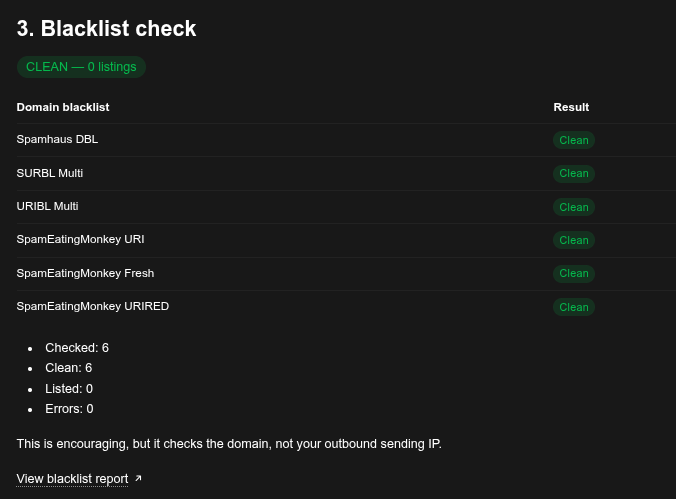
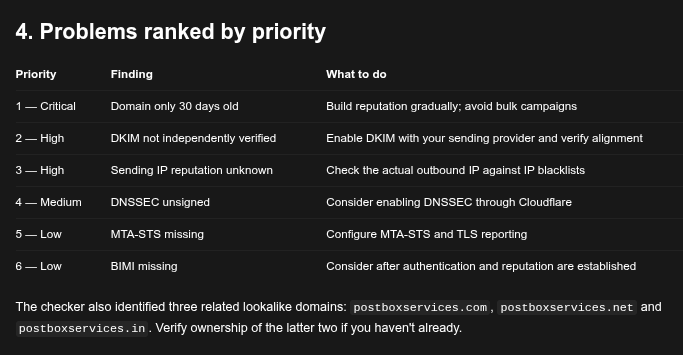
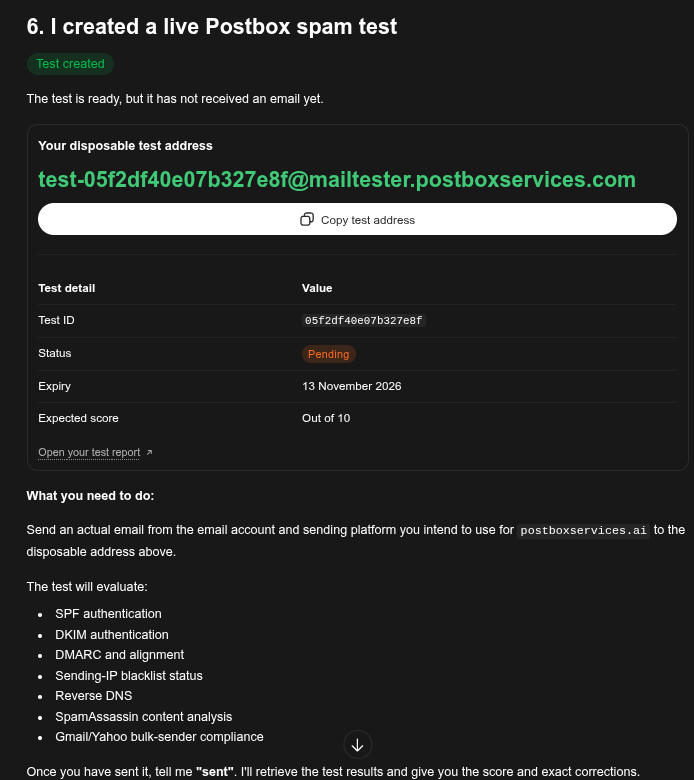
What came back for our own new domain, postboxservices.ai (6 Nov 2026): not ready for cold email at scale, even though the basics look good. SPF ends in -all, DMARC is at p=reject, the spoofing grade is B and all 6 domain blacklists are clean. The problem is age: the domain is only 30 days old, so it has almost no sending reputation. DNS checks also can't confirm DKIM or the sending IP, so ChatGPT set up a spam test as the next step and suggested a gradual start.
The screenshots for this prompt are from ChatGPT.
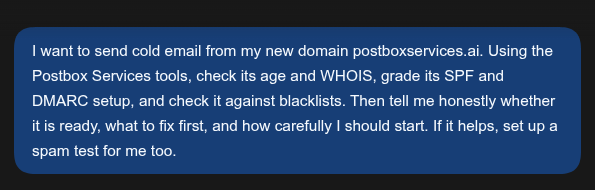
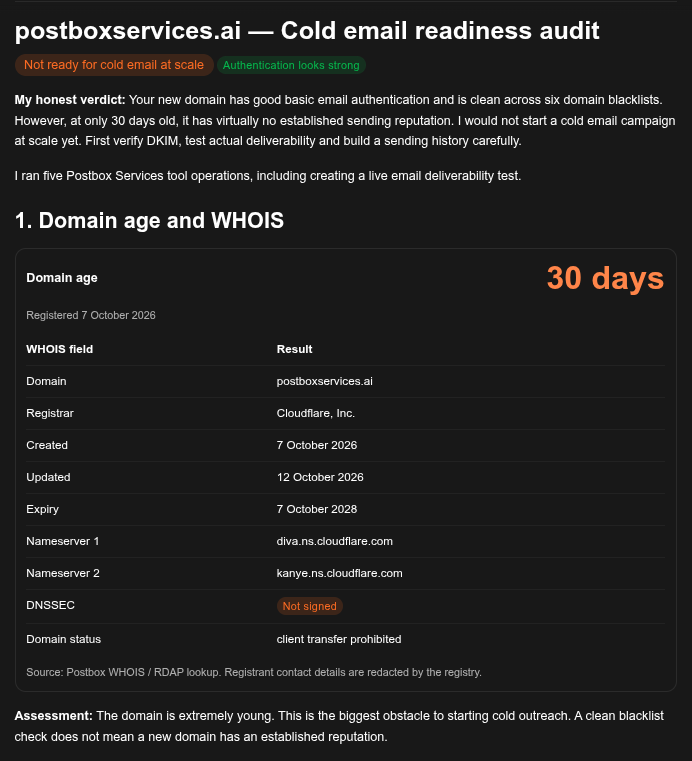
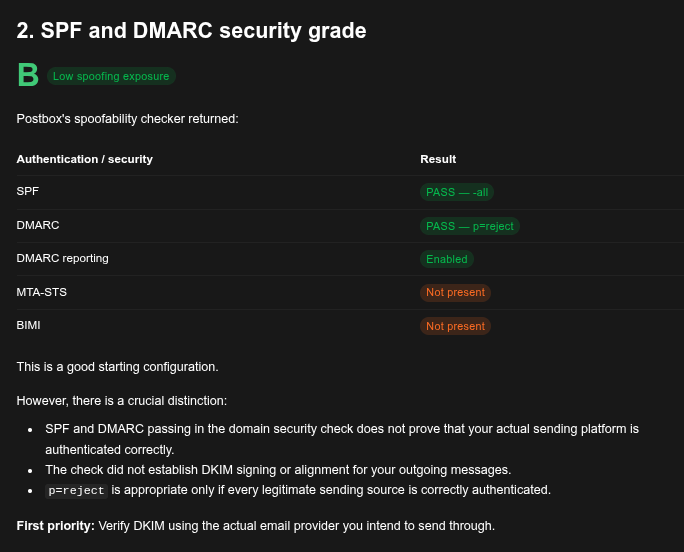
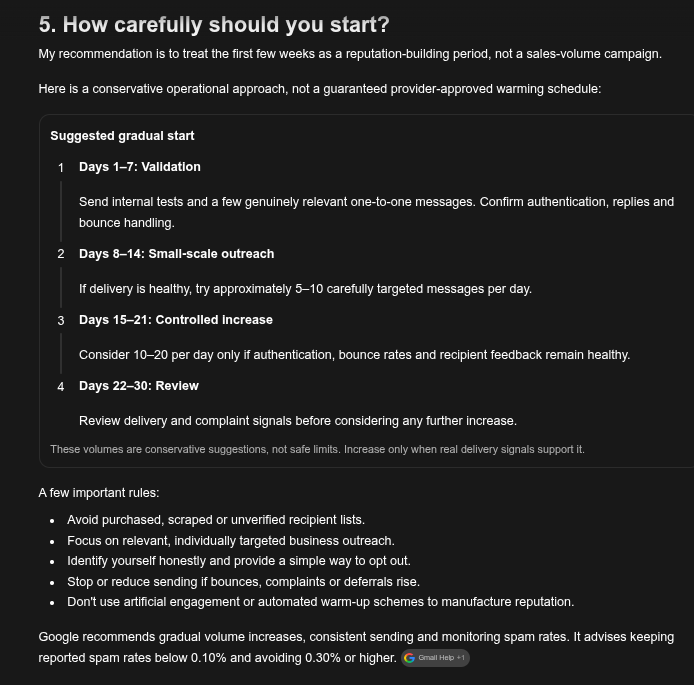
How to read it: a domain a few weeks old has no sending reputation yet, so start with small volumes, even if every DNS check passes. A missing DMARC record or an SPF record that doesn't include your sending tool has to be fixed before day one. Our cold email guide covers the rest.
Full reports: Postbox Mailtester and Spoofing & BEC Check
Prompt 6: Can my logo show up in the inbox?
Save this one for last. BIMI is the standard that lets your logo appear next to your emails, and it's a nice reward once your authentication is in good shape. It won't rescue an email from the spam folder, but it does help people recognise you in a crowded inbox. Getting it right means a DNS record, a logo in a very particular SVG format and a strict DMARC policy, which is exactly the kind of checking an AI can do for you.
What your AI does: it runs the BIMI check, which looks up the record, fetches the logo and tests it against the BIMI logo rules. Then it runs the spoofing grade, because BIMI also needs DMARC at enforcement.
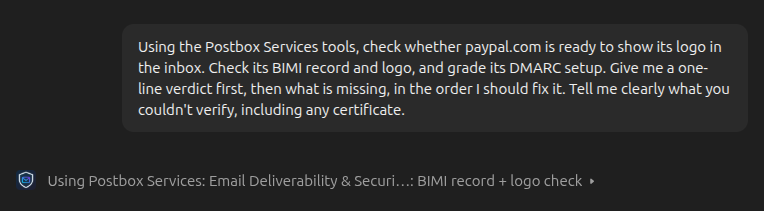
What came back for paypal.com (6 Nov 2026):
- BIMI record: published, pointing to a logo and a certificate.
- Logo: passes all 11 checks.
- DMARC: enforced. Claude saw the B grade and that direct forgery is blocked, and the spoofing check itself shows
p=reject.
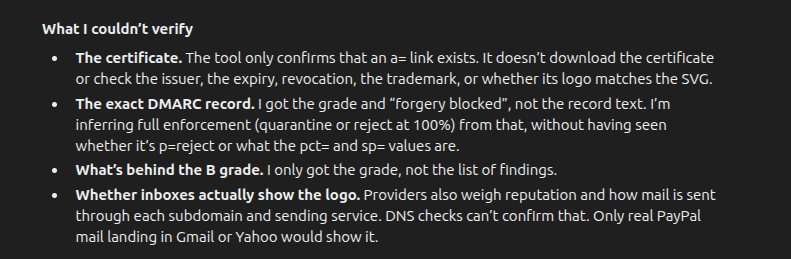
Claude's verdict: on everything it could check, paypal.com is ready, but it couldn't confirm that the certificate is valid. The certificate matters more than it looks: without one, Gmail won't show your logo, however clean the rest of your setup is.
The screenshots for this prompt are from Claude.
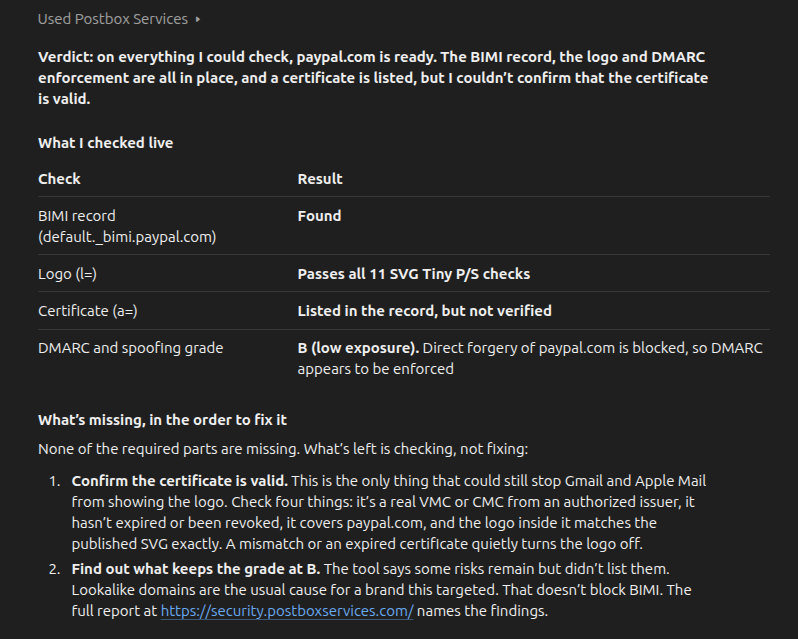
How to read it: fix things in this order.
- DMARC comes first. BIMI needs a policy of
quarantineorreject. Atp=none, nothing else matters yet. - Then the logo. If a logo check fails, the result names the rule it broke, so you can ask your AI what to change in the file.
- Then the certificate, depending on where your readers are. Gmail needs a VMC or a CMC. Yahoo doesn't currently require one, though it has its own conditions, including your sending volume and reputation. Outlook doesn't support BIMI at all. Our BIMI setup guide covers the certificates and the other mailbox providers.
Know the limit: the tool reports whether a certificate is referenced, but it doesn't verify the certificate itself. And a clean result is not a promise, because each mailbox provider decides for itself when to show a logo.
Don't see the BIMI tool? It was added on 5 November 2026. If you connected before then, your AI may still have the old tool list, so disconnect the Postbox Services server and connect it again.
Full report: BIMI Lookup
Four habits that make any deliverability prompt better
- Name the tools. Start with "Using the Postbox Services tools". If you have web search or other connectors switched on, this makes the AI more likely to run our live checks instead of searching the web or answering from memory. In ChatGPT you may also need to pick the connector in the chat before you send the prompt.
- Name the exact target. A domain, an IP or the email itself. "Check my email" gives the AI nothing to measure.
- Ask for a ranked fix list. "What should I fix first?" turns a wall of results into a to-do list.
- Ask what it couldn't verify. A good answer says when a list didn't respond or a check wasn't possible. If yours doesn't, ask.
What these prompts can't tell you
We want to be honest about this part. These checks measure your setup and your message. They can't see how Gmail or Microsoft rate you as a sender, or how many people mark your email as spam. For Gmail, that lives in Google Postmaster Tools. Use the two together and you'll have most of the picture.
Want the tools without a chat? All of them are free on the web: Postbox Services tools. And if the results show something you'd rather hand over, this is what we do.
Frequently Asked Questions
Do these prompts work in ChatGPT, Claude and Grok?
Yes, once the Postbox Services MCP server is connected. Without it, the AI can only guess, because your DNS and blacklist status aren't in its training data. See the setup guide.
Is it free?
Yes, with no account or API key. Fair-use limits keep it fast for everyone.
Can the AI send email for me?
No. For the spam test you send the email yourself; the AI only creates the test address and reads the result.
Is my email content stored?
No. Uploaded .eml files are processed in memory and not stored. Full policy on the setup page.
If Prompt 6 passes, will my logo appear?
Not necessarily. Most big mailbox providers have extra conditions, such as a certificate for Gmail or a good sending reputation for Yahoo, and Outlook doesn't support BIMI at all.
How often should I run these?
Prompt 1 once a month and after any DNS change, Prompt 2 before every new campaign or tool change, Prompts 3 and 4 whenever something lands in spam, and Prompt 6 after you change your logo or your DMARC policy.