How to Use Google Postmaster Tools (v2): Setup, Access and Every Dashboard Explained
Most email lists have a large share of Gmail addresses - often a third to half. Google Postmaster Tools is a free tool from Google that shows you how Gmail sees your email: whether people mark it as spam, whether it passes authentication, and whether Google is delivering it or blocking it. It takes about ten minutes to set up, and it is the only place where Google shows you your spam rate - the number its sender rules are enforced against.
This guide covers the whole tool as it exists today: what Postmaster Tools is, why the famous reputation dashboards were retired, how to add and verify a domain, how to delegate access to a colleague or consultant safely, and then a dashboard-by-dashboard walkthrough of all six sections - Compliance status, Spam, Feedback Loop, Authentication, Encryption and Delivery Error - with what "good" looks like and what to do when a chart turns against you.
What is Google Postmaster Tools?
Postmaster Tools is Google's free analytics console for people who send mail to Gmail. Where your ESP shows you opens and clicks, Postmaster Tools shows you what Google's receiving infrastructure observed: how many recipients marked your mail as spam, whether your SPF, DKIM and DMARC checks passed, whether your connections used TLS, and - since the 2024 sender requirements - whether your domain currently complies with Google's rules for bulk senders.
Three properties make it uniquely valuable:
- It is first-party data. Every other deliverability tool infers; Postmaster Tools is Google reporting its own measurements.
- It is the enforcement dashboard. The bulk-sender guidelines (in force since February 2024 for senders of roughly 5,000+ messages a day to Gmail) are scored against the numbers shown here - most importantly the 0.3% spam-rate ceiling.
- It is diagnostic, not promotional. There is nothing to buy and no score to flaunt. The tool exists so you can find and fix problems.
One expectation to set early: charts only render when Google has enough of your mail to be statistically meaningful. Small senders will see gaps or empty dashboards on light days. That is by design, not breakage.
The reputation dashboards are gone - and why that matters
If you used Postmaster Tools before August 2026, you remember its most-watched charts: Domain reputation and IP reputation, each grading you High, Medium, Low or Bad. Entire deliverability rituals were built around "getting the bar back to High".
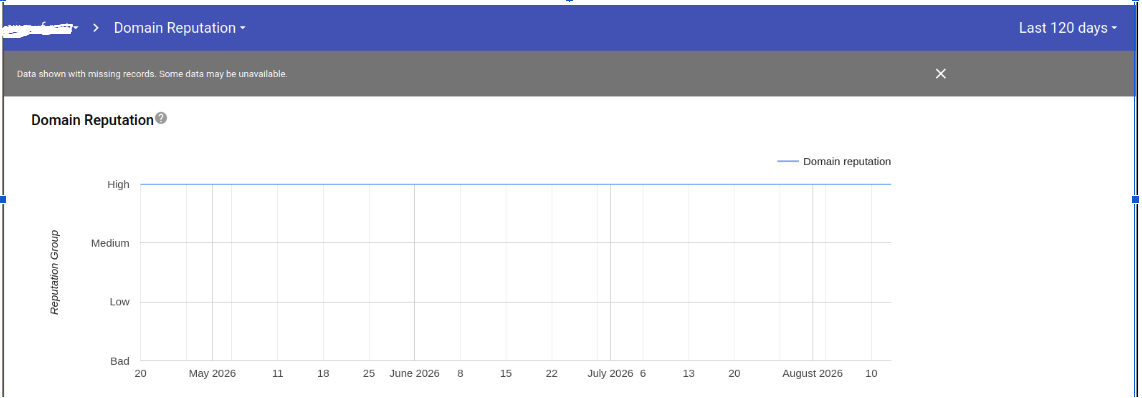
Those dashboards are gone. Google retired the old interface in stages: it stopped being the default on September 30, 2025, and in August 2026 v1 disappeared entirely, its API switched off the same month. The reputation charts did not make the journey to the rebuilt Postmaster Tools v2. In its official deprecation note, Google gave three reasons: reputation data "is not easily actionable for most senders", changes in sender behavior were slow to appear in it, and it could be misleading because "reputation is only one of many factors" in delivery decisions.
The deliverability community would add a blunter fourth reason: a single public grade invited gaming. Senders chased the badge - warming schedules, list tricks and quick fixes aimed at moving a bar - instead of fixing the behavior the bar was summarizing. We wrote about one side of this back in June 2025, in Do email warmup tools work in 2025?: automated warmup networks generate fake opens and replies from predictable cloud IPs, and Google's detection systems had already learned to spot those interactions as non-human and ignore them in its reputation calculations. Artificial reputation-building was being quietly discounted well before the dashboards disappeared. A "High" reputation also created a false sense of security: plenty of senders sat at High while their mail quietly slid into the Spam tab, because reputation was never the whole picture. Retiring the grade forces attention onto things a sender can actually act on - and takes away the badge people were gaming.
What was vs. what is
| Old Postmaster Tools (v1) | Postmaster Tools today (v2) |
|---|---|
| Domain reputation (High/Medium/Low/Bad) | Retired - replaced in spirit by Compliance status |
| IP reputation (High/Medium/Low/Bad) | Retired |
| Spam rate | Spam - same metric, same 0.3% ceiling |
| Feedback loop | Feedback Loop - carried over |
| Authentication | Authentication - carried over |
| Encryption | Encryption - carried over |
| Delivery errors | Delivery Error - carried over |
| - | New: Compliance status - pass/fail checks against the sender guidelines |
The philosophical shift: v1 answered "how much does Google trust me?" with a grade you could obsess over; v2 answers "am I doing the specific things Google requires?" with checks you can fix one by one. If you want every v2 verdict translated into plain English - what each pass, fail and warning actually means - we maintain a companion piece: Google Postmaster Tools: plain-language verdicts.
How to add and verify a domain
You need a Google account (any Gmail or Workspace login) and access to your domain's DNS.
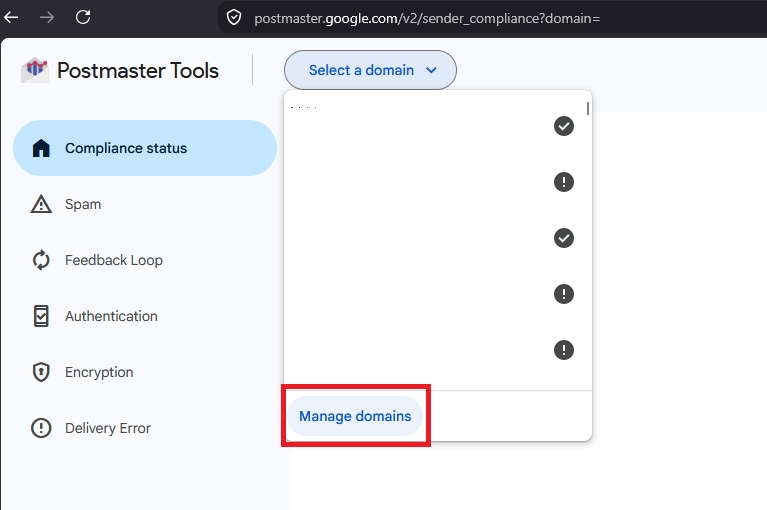
- Open postmaster.google.com and sign in. Click the Select a domain dropdown at the top and choose Manage domains.
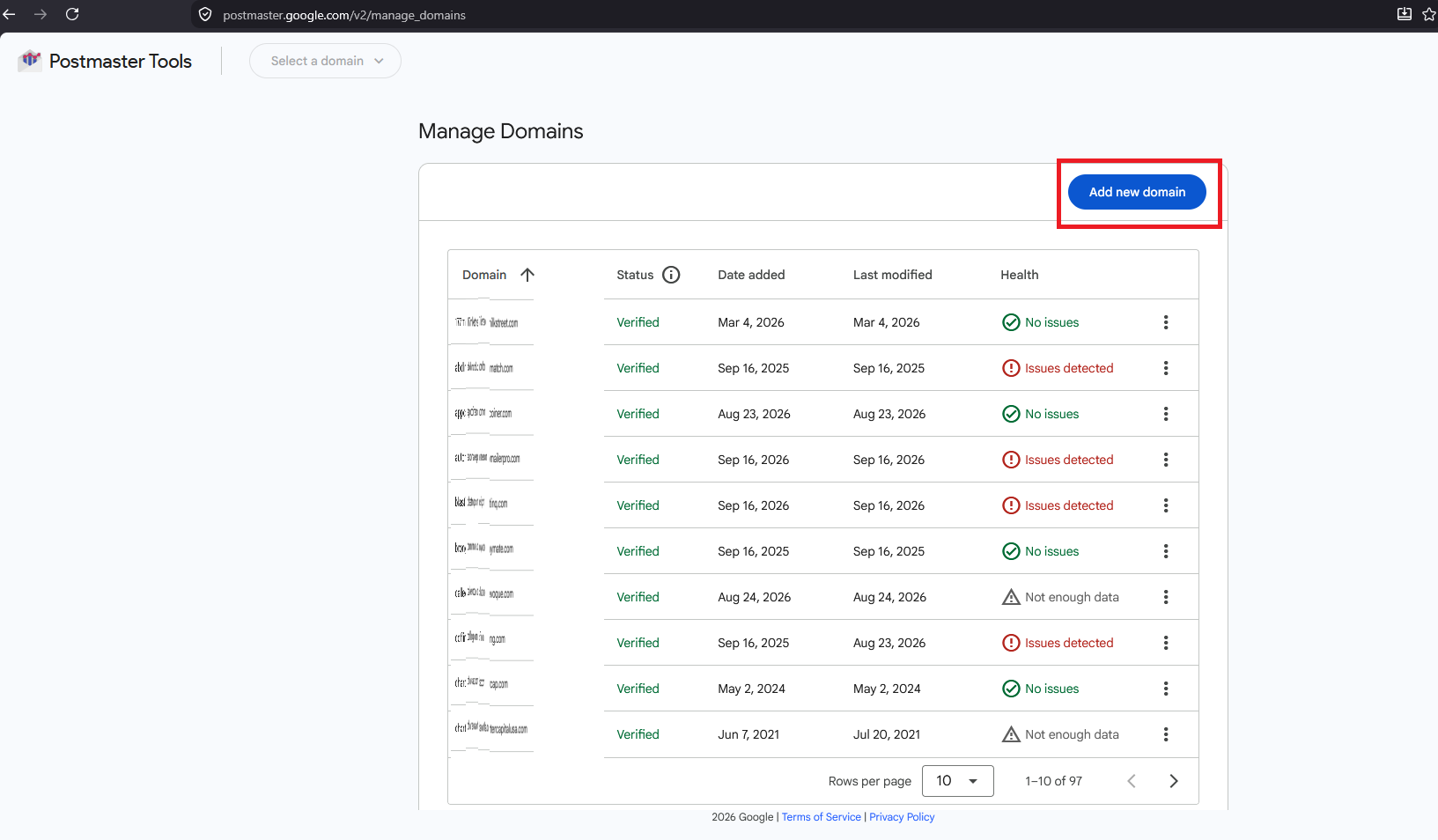
- On the Manage Domains screen, click Add new domain. Note the Health column here - "No issues", "Issues detected" or "Not enough data" per domain - a useful one-glance triage across everything you manage.
- Enter the domain you authenticate your mail with - the SPF/DKIM domain, e.g.
yourcompany.com- and click Create. If you sign with a subdomain (saymail.yourcompany.com), add the organizational domain; Google aggregates authenticated traffic under it.
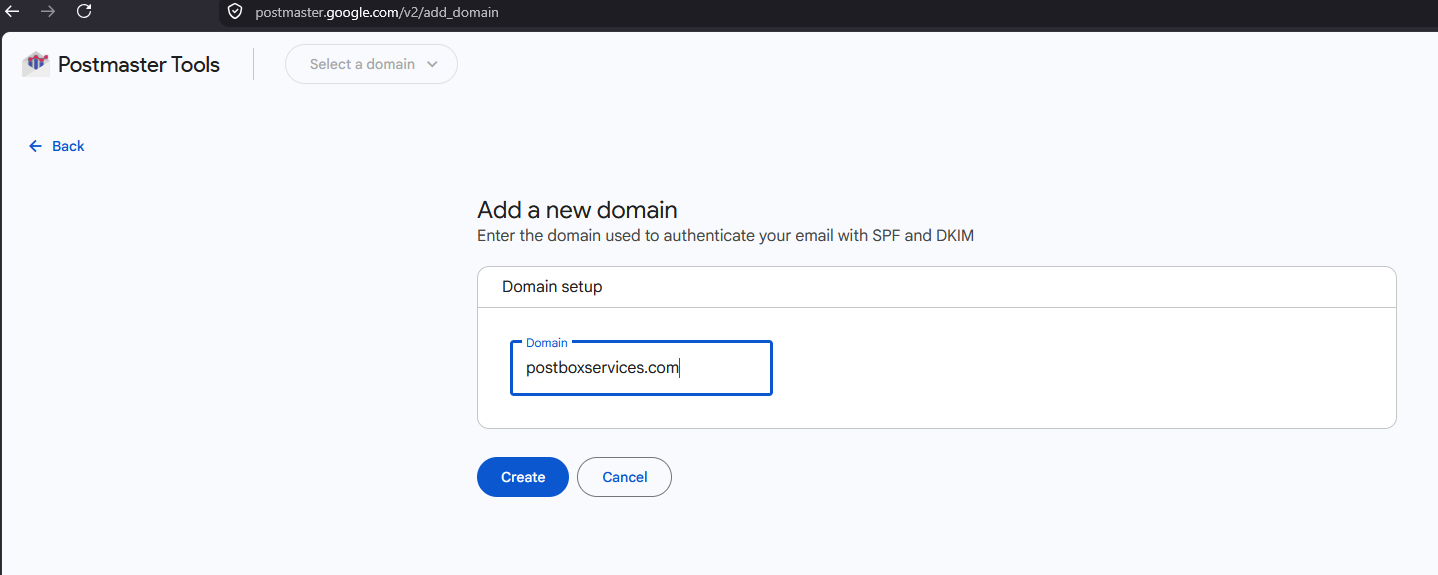
- Google shows the Verify ownership dialog: publish the
google-site-verification=...TXT record at your domain root (or the CNAME variant if your DNS host cannot take the TXT), then click Verify. DNS changes usually propagate in minutes; occasionally it takes a few hours.
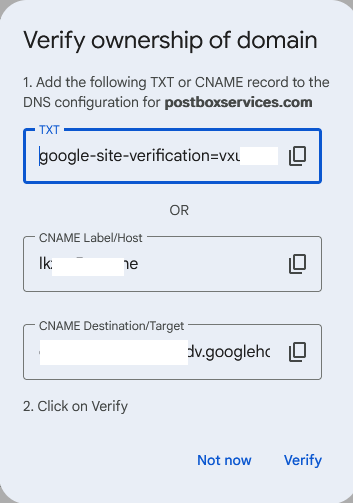
Two useful details: verification uses the same google-site-verification system as Search Console, so a domain already verified there under the same account typically confirms instantly. And leave the TXT record in place permanently - Google re-checks it, and removing it can silently un-verify the domain.
Data starts from verification day. Postmaster Tools is not retroactive, which is the single best argument for setting it up before you have a problem.
How to delegate access (the safe way)
Never share your Google password to give someone Postmaster Tools access - the tool has proper per-domain user management:
- On the Manage Domains screen, open the ⋮ menu on the domain's row.
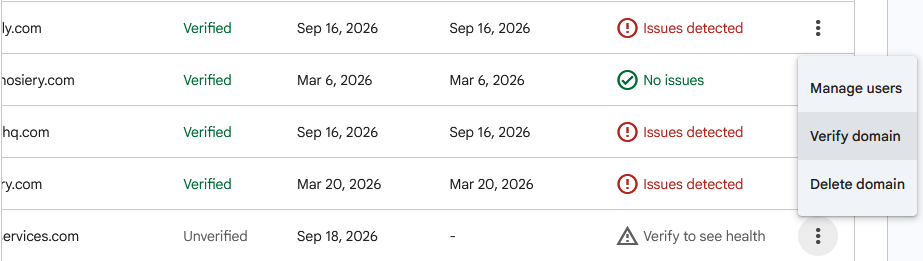
- Choose Manage users.
- Click New user and enter the collaborator's Google account email - a colleague, your agency, or your deliverability consultant.
- They now see that domain's dashboards under their own login. Remove them from the same screen when the engagement ends.
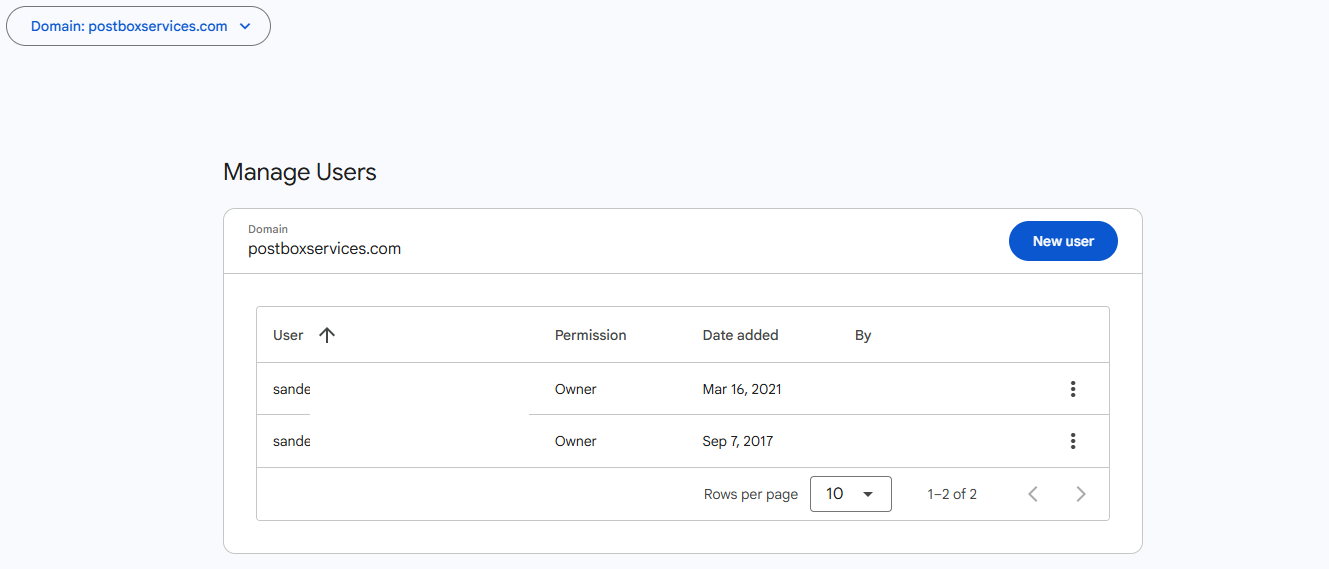
Access is scoped to the domain you shared, not your whole account. This is exactly how we monitor client domains at Postbox Consultancy Services: the client stays the owner, we get the dashboards, and revocation is one click.
The six dashboards, one by one
The current interface has six sections in the left navigation. Here is how to read each - and act on it.
1. Compliance status - start here, always
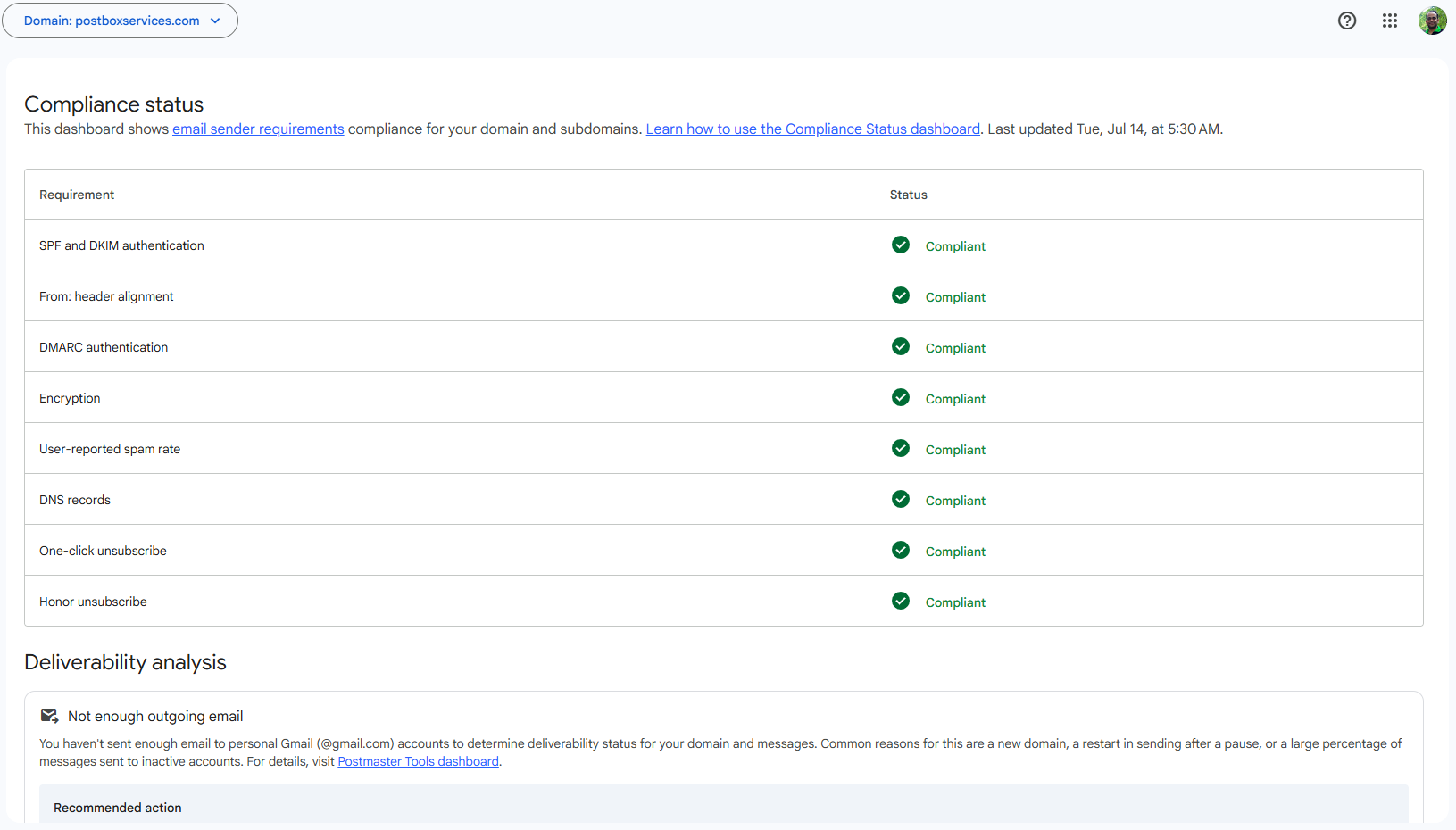
This is the replacement for the reputation era, and the first screen worth checking every week. Google evaluates your domain against its sender guidelines and shows a status per requirement, typically covering:
- SPF and DKIM authentication - is your Gmail-bound mail passing?
- DMARC - is a policy published, and does your mail align with it?
- User-reported spam rate - are you under the 0.3% ceiling?
- One-click unsubscribe (RFC 8058) - present on your bulk mail?
- TLS encryption - are your sending connections encrypted?
Below the checklist sits a newer panel: Deliverability analysis. When Google has enough data, it comments on how your mail is actually landing and recommends actions; low-volume domains see "Not enough outgoing email" instead - which, as the note itself explains, is common for new domains, paused senders, or mail going mostly to inactive accounts. It is the closest thing v2 has to the old reputation narrative, expressed as advice rather than a grade.
How to act: anything not green is a to-do item with a name on it - there is no mystery grade to interpret. A failing DMARC line means an alignment problem on some sending stream; a failing unsubscribe line means your ESP's list-unsubscribe headers need attention. Our plain-language verdicts guide decodes each possible status message individually.
2. Spam - the number that decides your fate
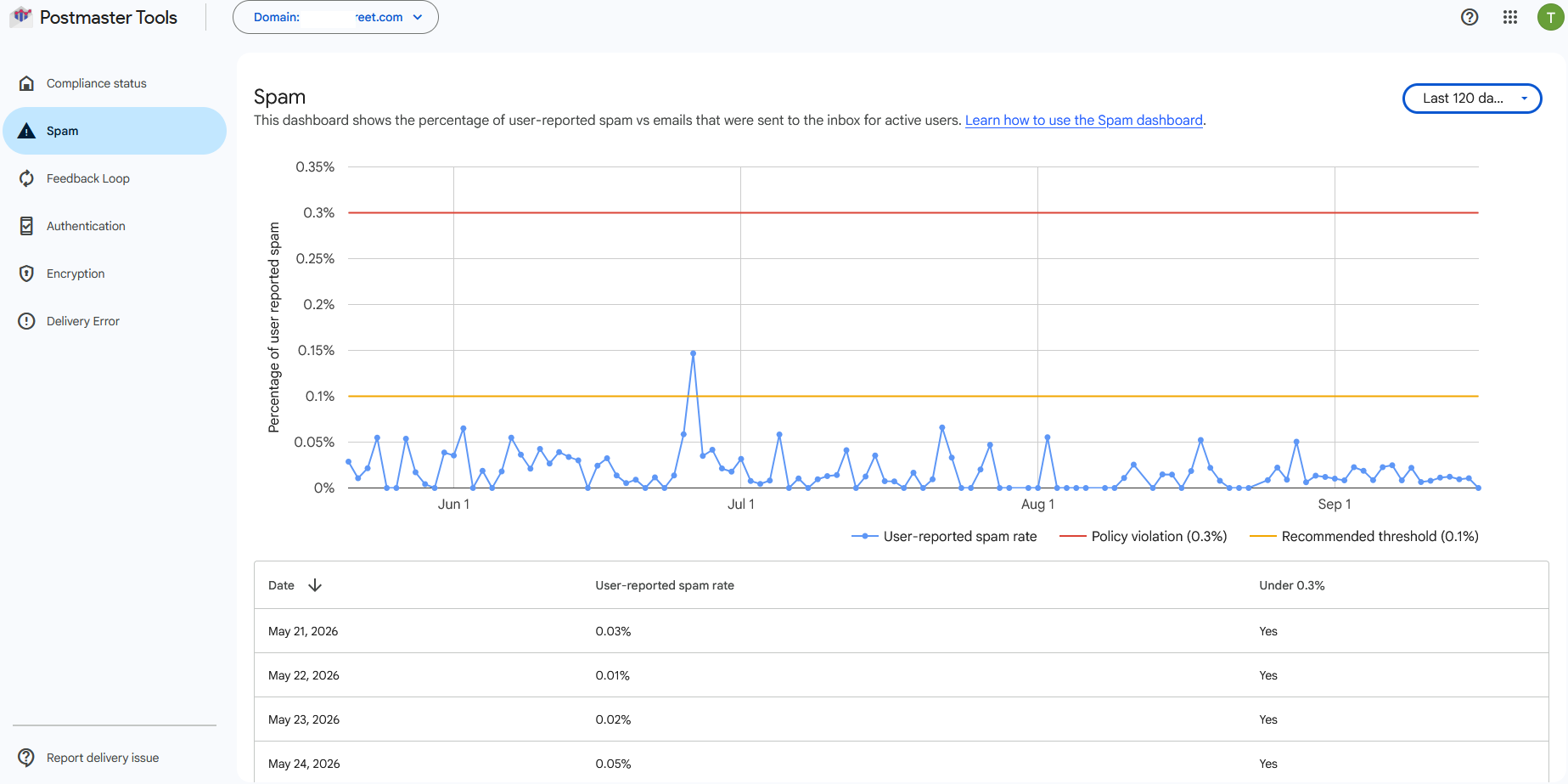
The user-reported spam rate is the share of your inbox-delivered messages that real recipients marked as spam. Google's ceiling is 0.3%; its recommendation is to stay below 0.1%. Treat 0.1% as your working limit - 0.3% is where enforcement begins, and the chart is a trailing average that falls slowly once damaged.
How to act: a rising line means recipients are objecting to something specific - a new list source, a changed cadence, a campaign that missed its audience. Correlate spikes with your send calendar. If you are already above the line, we have a dedicated recovery walkthrough: Gmail spam rate above 0.3%? Here's how to fix it.
3. Feedback Loop - for high-volume and ESP-style senders
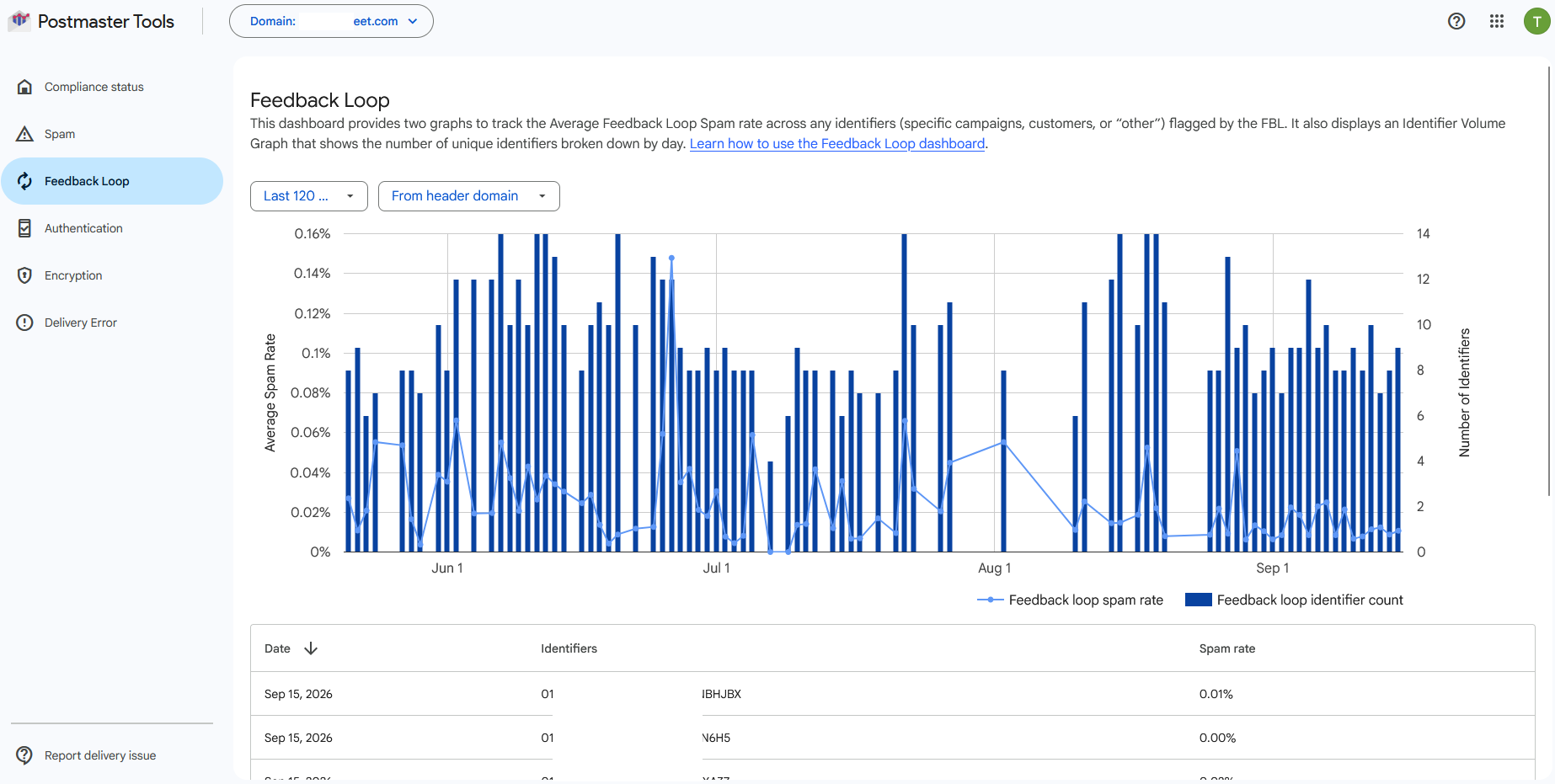
Gmail's Feedback Loop (FBL) is opt-in instrumentation for large senders: you add a Feedback-ID header to each message, tagging the campaign, customer or mail stream it belongs to, and Gmail reports back which identifiers are drawing spam complaints. If you never configured the header, this dashboard stays empty - that is normal for most direct senders.
How to act: if you run many campaigns or send on behalf of customers (an ESP, a SaaS with tenant mail), the FBL is how you find the one bad stream hiding inside acceptable averages. A flagged identifier is an instruction: pause that stream, inspect its list source and content, fix, resume.
4. Authentication - your SPF, DKIM and DMARC pass rates
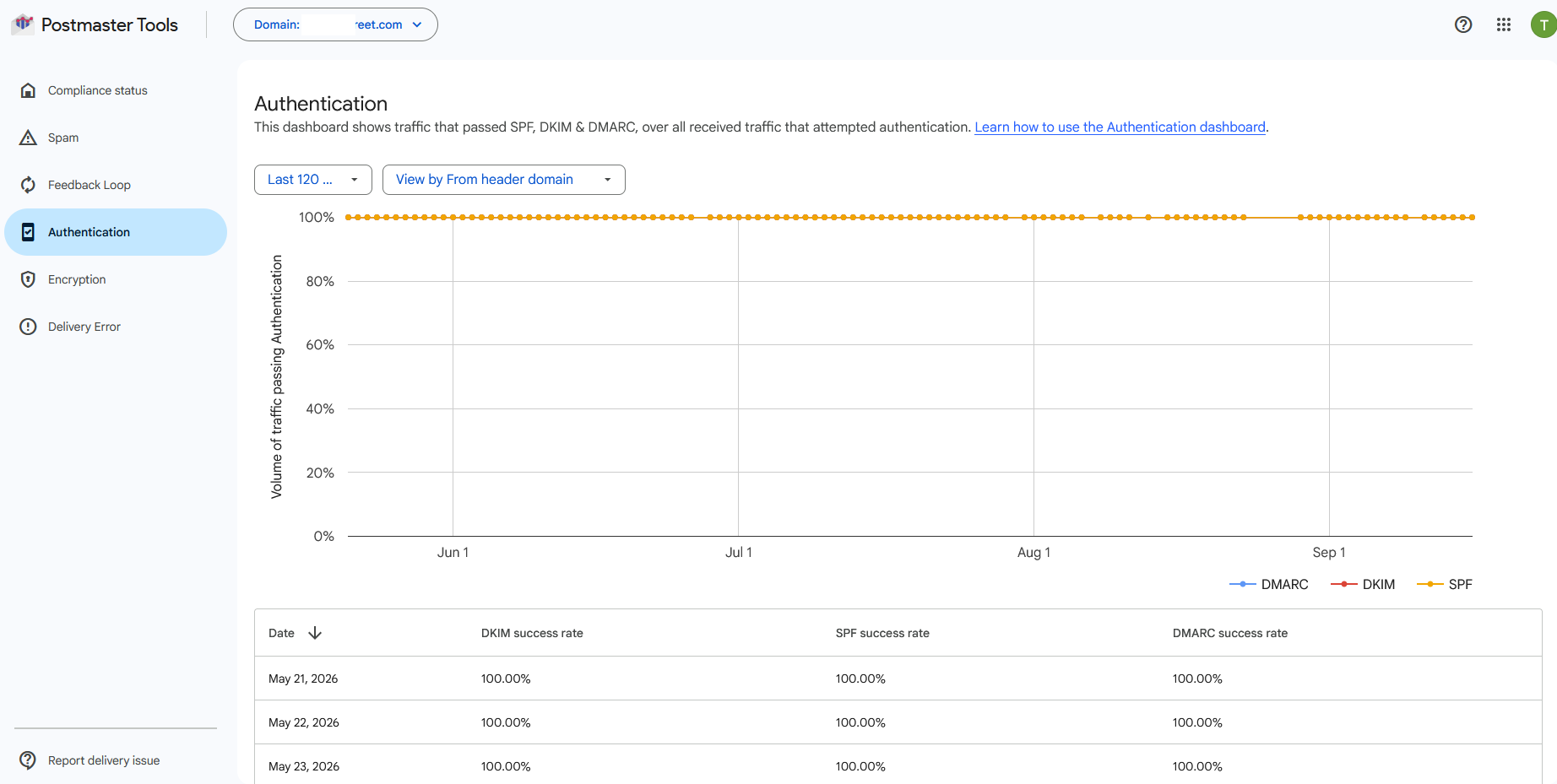
Three lines showing what percentage of your attempted traffic passed SPF, passed DKIM, and passed DMARC. Healthy senders sit at or near 100% on all three.
How to act: a persistent dip below ~100% means some stream is sending unauthenticated - a forgotten notification service, a misconfigured subdomain, or (if the dip is large and unfamiliar) someone else sending as you. The chart tells you that it happens; identifying which source requires DMARC aggregate reports, which name every sending IP individually - that is exactly what our free DMARC monitor reads for you weekly. Pair the two: Postmaster for the trend, DMARC reports for the culprit.
5. Encryption - TLS on the wire
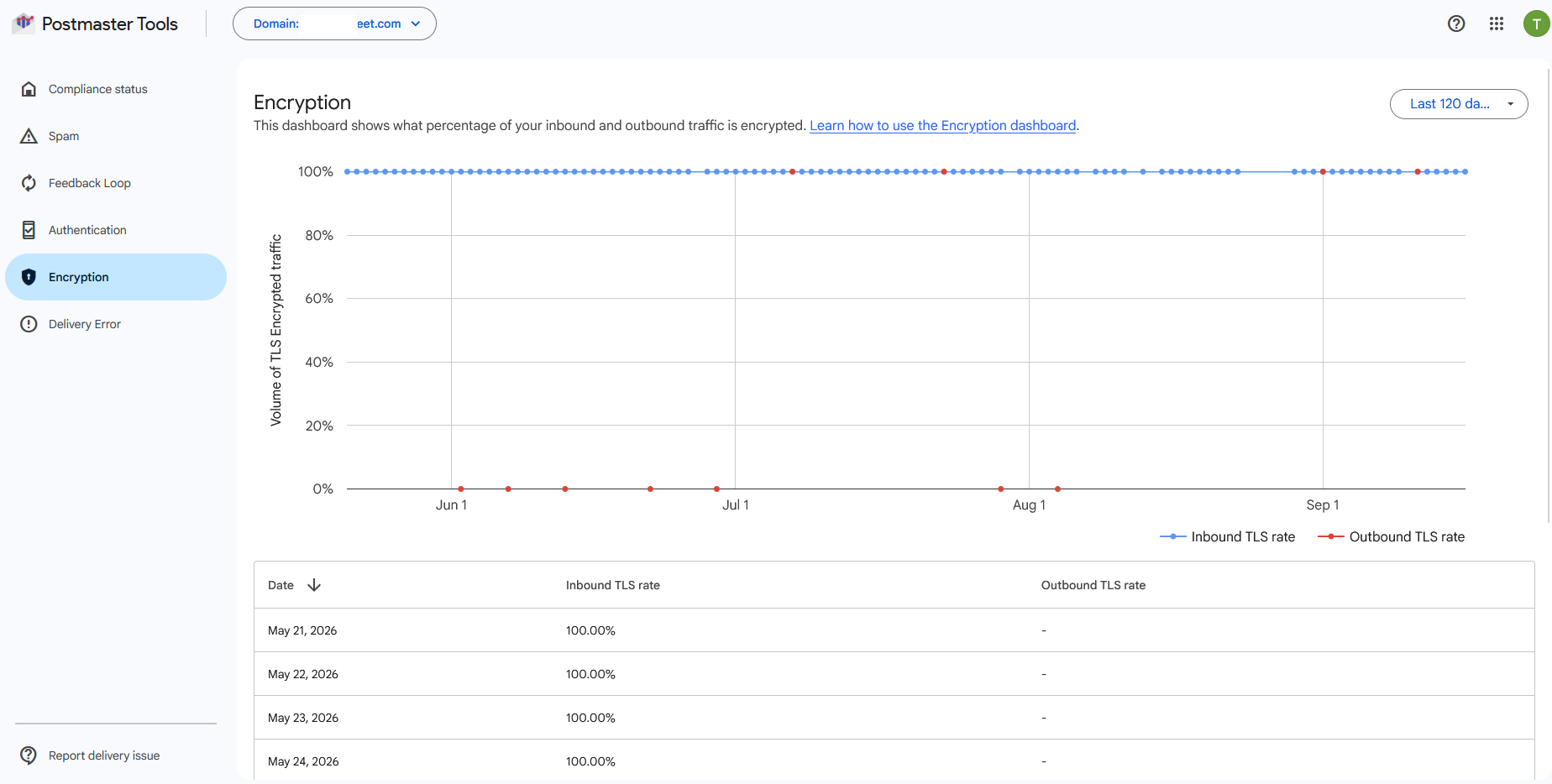
This chart shows the share of your mail exchanged with Gmail over encrypted (TLS) connections. Modern mail infrastructure should show effectively 100%; Google's sender guidelines require TLS for sending.
How to act: anything meaningfully below 100% means part of your infrastructure negotiates in plaintext - typically an old relay or an appliance with TLS disabled. Find and fix it; unencrypted sending is both a compliance failure and a trust signal against you. And if you want the same visibility for mail coming into your own domain - which senders failed to deliver to you over TLS, and why - that is what TLS-RPT reporting provides: see our guide to TLS-RPT and MTA-STS, and our free TLS-RPT monitor.
6. Delivery Error - where your mail gets refused
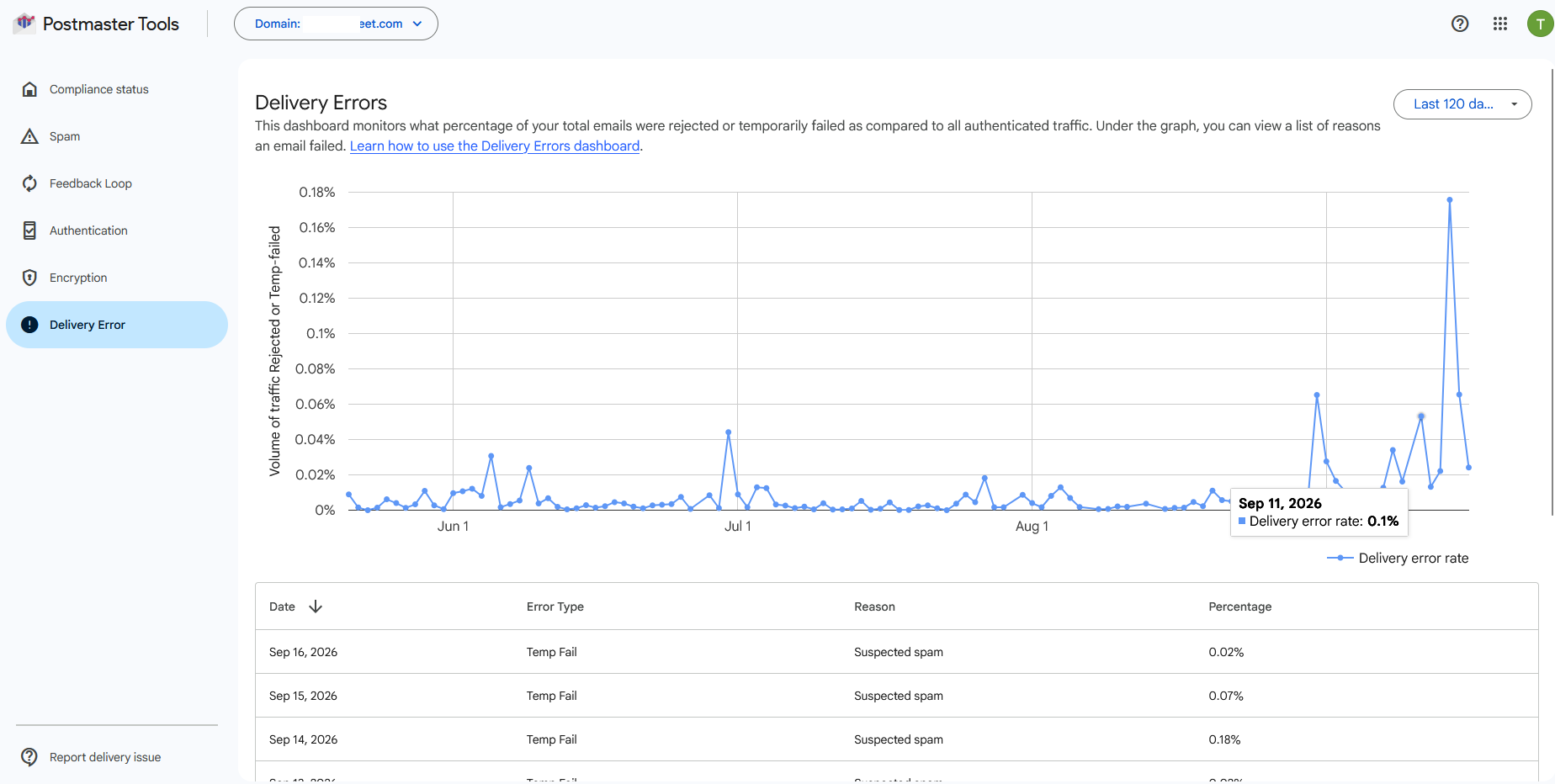
The percentage of your attempted mail that Gmail rejected outright or temporarily failed (deferred), broken down by reason - rate limits, suspected spam, policy failures like DMARC rejection, or blocked IP ranges.
How to act: occasional small deferral percentages are normal life on the internet. Investigate when errors are sustained or spiking: the reason label tells you which lever to pull. "Rate limited" points to volume ramping too fast; "DMARC policy" errors mean you are failing your own published policy; spam-block reasons combined with a rising Spam chart mean a reputation problem being enforced. This dashboard is where an inbox-placement mystery usually stops being mysterious.
A five-minute weekly routine
Postmaster Tools rewards habit, not heroics. Weekly, in order:
- Compliance status - all green? If not, that is your week's task list.
- Spam - trend flat and under 0.1%? Correlate any bump with your send calendar while memory is fresh.
- Authentication - all three lines pinned near 100%?
- Glance at Delivery Error and Encryption for anything unusual; check Feedback Loop if you use Feedback-ID.
Ten minutes of setup, five minutes a week - and Gmail stops being a black box. If the dashboards are telling you something is wrong and the fix is not obvious, that is precisely the moment a deliverability audit earns its keep: Postmaster Tools shows the symptom, the audit finds the cause.
Frequently Asked Questions
What is Google Postmaster Tools?
Google Postmaster Tools (sometimes shortened to GPT by email teams) is a free dashboard from Google for people who send email to Gmail users. It shows how Gmail sees your mail: the share of recipients marking it as spam, whether your SPF, DKIM and DMARC authentication passes, whether your connections use encryption, how much of your mail Gmail rejects and why, and - since the 2024 sender requirements - a compliance checklist against Google's rules for bulk senders. The data comes directly from Google's own measurements, which no third-party tool can replicate.
Who should use Google Postmaster Tools?
Anyone whose email matters commercially and reaches Gmail or Google Workspace recipients - which for most lists is a third to half of all addresses. It is effectively mandatory for bulk senders (roughly 5,000 or more messages a day to Gmail), because the sender guidelines are enforced against the numbers shown here. Marketers, cold-email teams, transactional-mail operators and the agencies or consultants who look after them all belong in it - and access can be safely delegated per domain without sharing passwords.
Is Google Postmaster Tools free?
Yes, completely free - there is no paid tier, no upsell and nothing to buy inside it. All you need is a Google account and access to your domain's DNS to verify ownership. Setup takes about ten minutes, and the dashboards begin populating from the day you verify (data is not retroactive, so set it up before you need it).
Why does Google Postmaster Tools show no data for my domain?
The most common reason is volume: Google only renders charts when your domain sends enough mail to Gmail for the data to be statistically meaningful and privacy-safe - low-volume senders often see empty dashboards on some or all days. Other causes: the domain was verified very recently (data appears from verification onward, not retroactively), you are looking at the wrong domain variant (data is keyed to the DKIM signing domain or SPF domain), or your mail genuinely is not reaching Gmail at all. An empty chart is not an error message - but a chart that used to have data and went silent is worth investigating.
What happened to the Domain reputation and IP reputation dashboards?
Google retired them with the move to Postmaster Tools v2 - the old interface stopped being the default in late 2025 and the reputation dashboards did not survive the transition. Google's stated reasons: the reputation data was not easily actionable, was slow to reflect changes in sender behavior, and could be misleading because reputation is only one of many factors affecting delivery. The deliverability community adds a fourth reading: a single public reputation grade invited senders to chase and game the badge instead of fixing the behavior behind it. The Compliance status dashboard - concrete pass/fail checks against Google's sender requirements - is the replacement way of thinking.
Can I give my agency or consultant access to Postmaster Tools without sharing my Google password?
Yes - never share the password. Postmaster Tools has per-domain user management: from the domain's menu choose Manage users and add the collaborator's Google account email. They see the same dashboards for that domain only, under their own login, and you can remove them at any time. This is the standard, safe way to let a deliverability consultant monitor your Gmail metrics.