Microsoft 365 or Google Workspace Down? How to Keep Business Email Working During an Outage
On 12 November 2026, Microsoft 365 went down for a large share of its users worldwide. Outlook, Exchange Online and Teams stopped answering, and email to Microsoft-hosted mailboxes slowed to a trickle for the better part of a day. Google Workspace has had its own outages over the years, and it will have more. (We covered what happened in our industry update on the outage.)
Most of that email was not lost. But for hours, nobody at thousands of businesses could read a customer's order, answer a support request, send a quote or reply to a deal that was about to close. The delay is the damage. This guide is about making sure that, the next time your provider goes down, your business keeps receiving, reading and replying to email.
What actually breaks during an outage
Most businesses run email the same way: the domain's MX record points straight at Microsoft 365 or Google Workspace, and staff read mail in Outlook or Gmail. It is simple and it works, until the provider has a bad day.
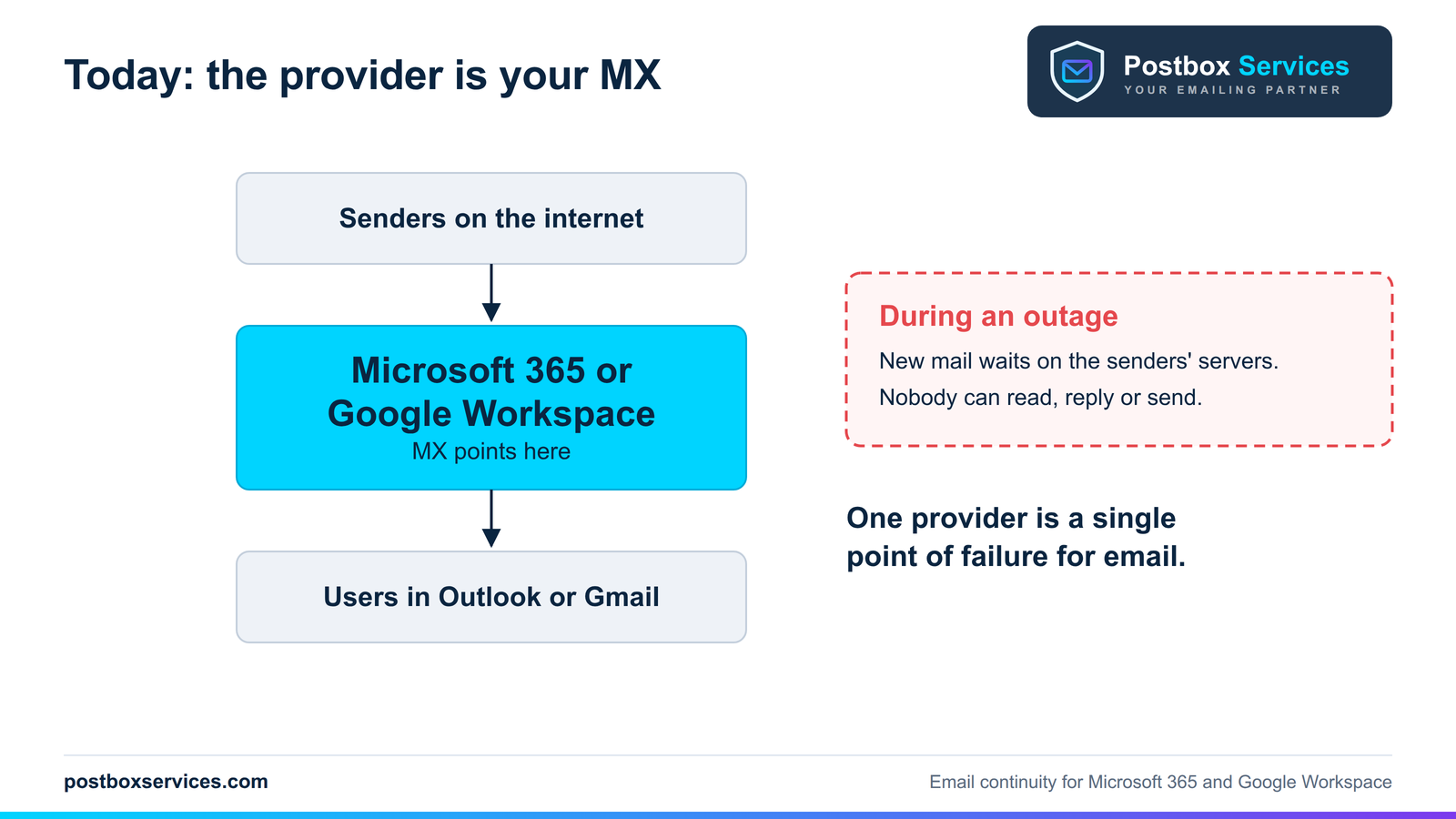
When the provider goes down, three things can fail, and an outage can hit any or all of them:
- Access: staff cannot open their mailboxes in Outlook, Gmail or on their phones.
- Receiving: new mail cannot be delivered, so it waits on the senders' servers and arrives hours later.
- Sending: replies, quotes and invoices cannot go out.
Sending mail servers do keep retrying for days, so most mail eventually turns up. But "it will arrive eventually" is no comfort to a customer waiting on an answer, a supplier chasing a payment or a team with a deadline. If email runs your business, you need a way to keep working through the outage, not just to catch up afterwards.
Three options at a glance
There are three ways to prepare, from free to fully independent. The rest of this guide explains each one.
| Option | Read existing mail | Receive new mail | Reply during the outage | Changes your MX |
|---|---|---|---|---|
| Offline copy in Outlook or Gmail | Yes, recent mail on that computer | No | Written now, sent after recovery | No |
| Copy-only (Google routing or Microsoft journaling) | Yes, on the emergency server | Only while the provider's own mail flow works | Yes, through a sending route set up in advance | No |
| Gateway plus emergency mail server | Yes, on the emergency server | Yes, while the gateway is healthy | Yes, through a sending route set up in advance | Yes |
Quick win: keep an offline copy on every computer
Before anything else, make sure every computer keeps a local copy of recent mail. It costs nothing and helps the moment an outage starts.
- New Outlook for Windows keeps an offline copy by default: 30 days of email, adjustable to 7, 30, 90 or 180 days under Settings > General > Offline (Microsoft's guide).
- Classic Outlook does the same with Cached Exchange Mode, set under File > Account Settings > Account Settings, with a slider for how much mail to keep (from 1 month up to All). Microsoft recommends it for Microsoft 365 accounts.
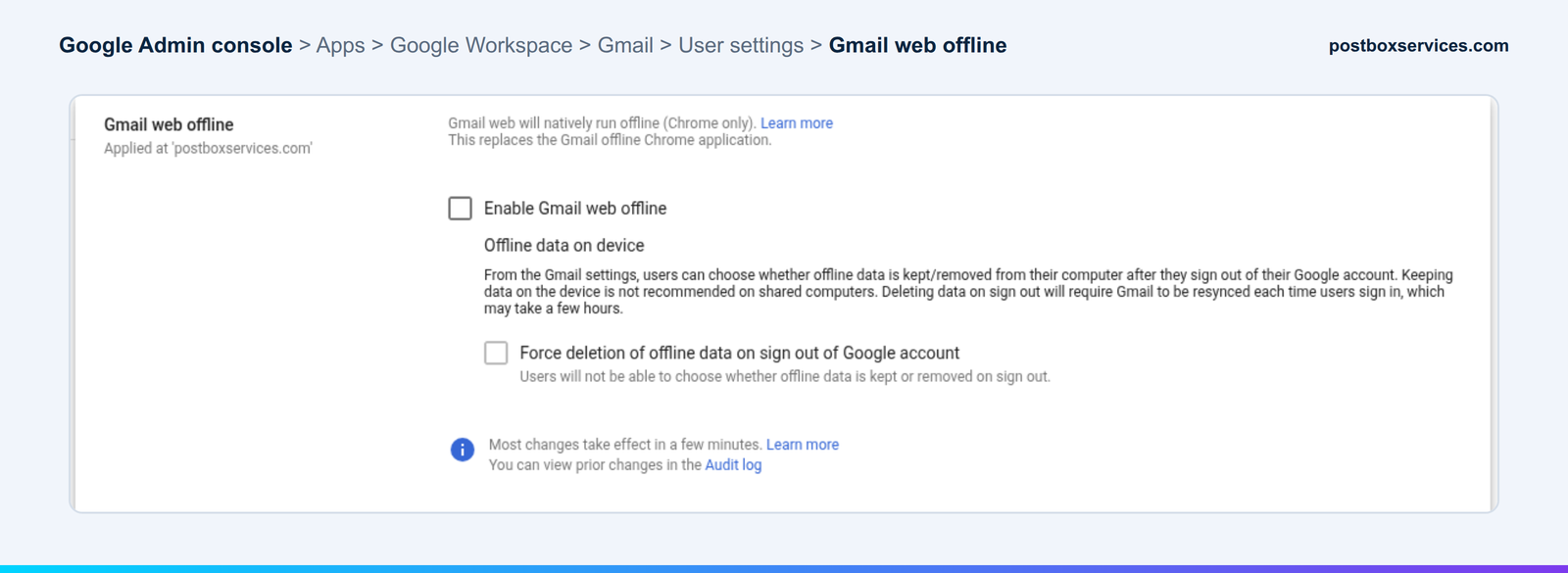
- Gmail can work offline in Chrome, keeping the last 7, 30 or 90 days. An admin has to allow it first under Apps > Google Workspace > Gmail > User settings > Gmail web offline, then each user turns it on in Gmail's settings (Google's guide).
During an outage, people can still read and search that copy, open attachments, check contacts and calendar, and write replies that wait in the Outbox. What they cannot do is receive new mail or send anything until the service is back. So the offline copy keeps people productive on existing work, but it does not keep the business reachable. For that, you need a second path for your mail.
The real fix: a gateway you control, plus an emergency mail server
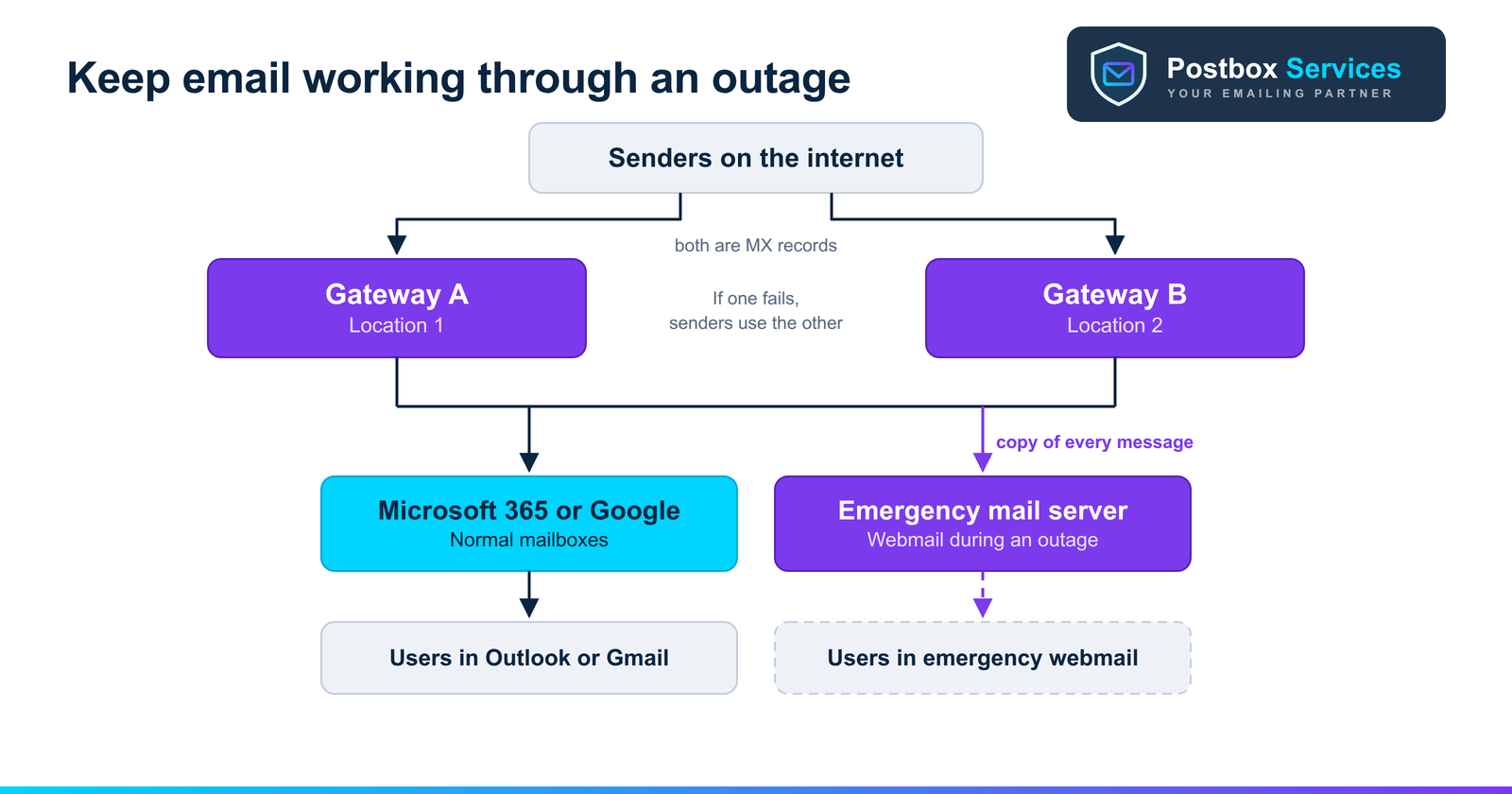
The approach that keeps email flowing is the one enterprise continuity services use: put your own email gateway in front of Microsoft 365 or Google Workspace, and keep a copy of every incoming message on a separate emergency mail server.
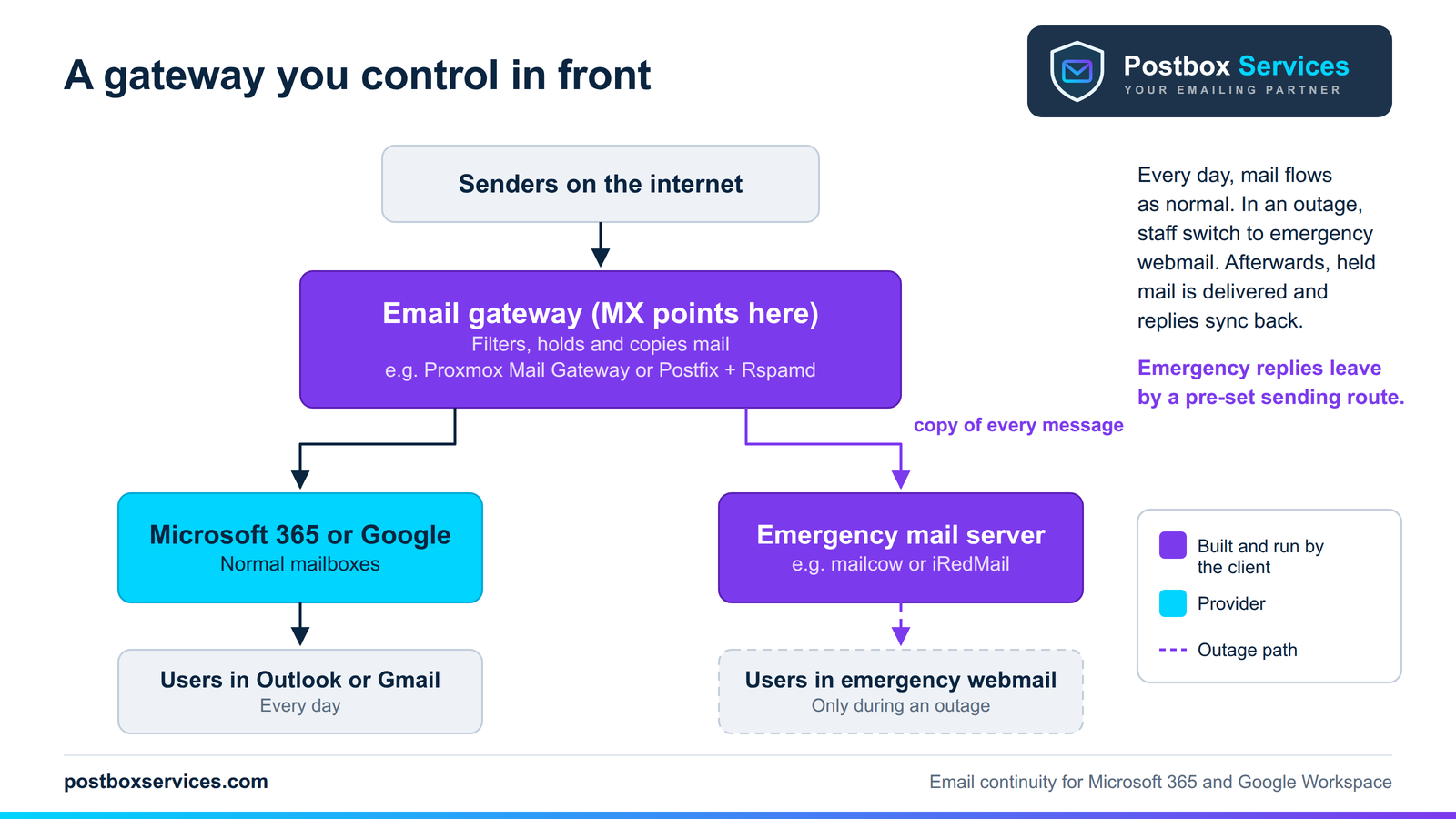
On a normal day nothing changes for staff. The MX record points at the gateway, the gateway filters mail and passes it straight on to Microsoft 365 or Google Workspace, and people keep using Outlook or Gmail. In the background, the gateway also copies every message to the emergency mail server, which keeps a rolling window of recent mail (for example 30 days) in a mailbox for each person.
What happens during an outage

- Normal day. Mail flows to Microsoft 365 or Google as usual, and a copy of every message is kept on the emergency server.
- Provider goes down. The gateway cannot deliver to the provider, so it holds that mail in its queue. As long as the gateway is healthy and has queue space, mail waits there rather than bouncing, and the emergency copy keeps arriving.
- Staff keep working. People sign in to the emergency webmail (or add it to their phone's mail app), read new mail and reply. Replies go out by a sending route set up in advance (see sending during an outage), signed for your domain so they pass SPF, DKIM and DMARC.
- Provider recovers. The gateway delivers everything it held, and the replies sent during the outage are copied into each person's Sent folder, so email threads are complete again once the sync has run.
Want this designed around your own Microsoft 365 or Google Workspace setup? Talk to us.
Building it: the parts
Every piece of this can be built with mature open-source software, on the business's own servers or its own cloud account.
The gateway
The gateway receives all inbound mail, filters it, holds it when the provider is unreachable and copies it to the emergency server. Two good routes:
- Proxmox Mail Gateway, an open-source mail filter (AGPLv3) with a web console. You list your domains as relay domains and add a transport that delivers to Microsoft 365 or Google. Its rule system includes a "Blind Carbon Copy" action that sends a copy of each message to another address, mail that cannot be delivered stays in its queue for later, and it can sign outgoing mail with DKIM. It filters spam and viruses with SpamAssassin and ClamAV, offers users a spam quarantine, and runs as a cluster for high availability. It does not store mailboxes, so it is the gateway only.
- Postfix with Rspamd and ClamAV, the same building blocks assembled by hand. Postfix relays mail on to the provider and can copy each recipient's mail to a second address; Rspamd handles spam filtering and DKIM signing. It is lighter and fully configurable, and suits teams comfortable running Linux mail servers.
The emergency mail server
The emergency server stores the rolling copy and gives people webmail during an outage. A complete mail suite does the job:
- mailcow, a Docker-based suite with Postfix, Dovecot, Rspamd and SOGo webmail, plus an API that makes it easy to create and update mailboxes automatically.
- iRedMail, which installs Postfix, Dovecot, SpamAssassin, ClamAV and Roundcube webmail as normal system packages. We walk through a full install in our iRedMail setup guide.
Telling Microsoft 365 or Google about the gateway
Once a gateway sits in front, every message reaches the provider from the gateway's address rather than the real sender's. The provider has to be told, or its own spam and spoofing checks lose sight of the original sender.
- Microsoft 365: turn on Enhanced Filtering for Connectors, which lets Microsoft see the original sender's IP. Then create a Partner inbound connector that only accepts mail from the gateway's IP addresses or certificate, so nobody can go around it (Microsoft's guide to mail flow through a third-party service). Microsoft itself recommends pointing MX straight at Microsoft 365 to keep things simple, so this is a deliberate choice for continuity, set up with care.
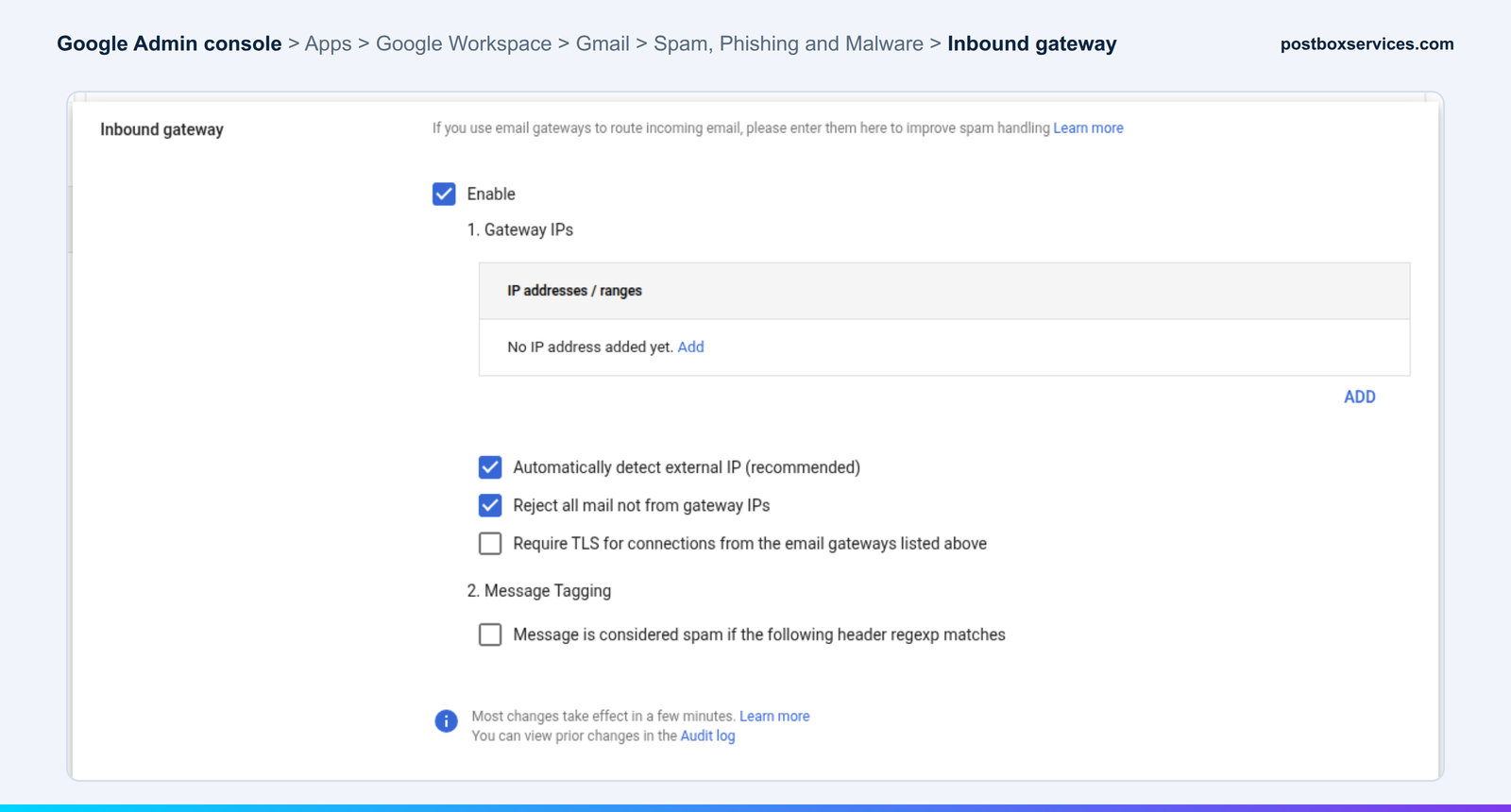
- Google Workspace: in the Admin console, go to Apps > Google Workspace > Gmail > Spam, Phishing and Malware > Inbound gateway (admin.google.com/ac/apps/gmail/spam) and add the gateway's public IP addresses. You can also require TLS and reject mail that does not come from the gateway (Google's guide). Google notes that Gmail does not enforce the sender's DMARC policy on mail that arrives through a gateway, so the gateway should check DMARC itself.
- MTA-STS: if your domain publishes an MTA-STS policy, add the gateway's hostname to it before changing MX, or senders that enforce the policy will refuse to deliver (see our MTA-STS guide).
Then test the lock-down: send a message straight to Microsoft's or Google's mail servers, bypassing the gateway, and confirm it is rejected. If it gets through, spammers can skip your gateway the same way.
Before and after switching, check what the world sees for your domain with our free MX checker.
Don't make the gateway a new single point of failure
A single gateway server just swaps Microsoft's or Google's availability for your own. Build it so that losing one piece does not stop your mail:
- Two gateway servers, with different hosting providers or at least different locations, both listed as MX records. If one is down, senders try the other automatically. Proxmox Mail Gateway can run the two as a cluster that shares its configuration; with Postfix, keep both configurations in step.
- Queue space for a long outage. Give each gateway enough disk to hold several days of your normal inbound mail, and check how long it keeps retrying before it gives up.
- Monitoring and alerts on the things that matter: queue size, delivery to the provider, disk space and certificate expiry.
- DNS that does not depend on the provider. Keep your domain's DNS with a reliable DNS host that is not part of Microsoft 365 or Google Workspace, so you can still change records during their outage.
- Regular tests. Take one gateway offline and confirm mail still arrives through the other.
Sending during an outage: set it up in advance
Receiving mail is only half the job. During the outage, replies have to leave by a route that does not depend on the provider that is down, and that route has to be ready before you need it:
- Publish SPF and DKIM now, not mid-outage. Add the emergency sending route to your SPF record and publish its DKIM key today, so replies pass SPF, DKIM and DMARC alignment from the first message. DNS changes made during an incident cannot be relied on to take effect in time.
- Mind the sending reputation. A server that sends nothing all year and then suddenly carries every reply the business makes looks suspicious to Gmail and Microsoft, and may be slowed down or filtered to spam exactly when it matters. Two good answers: relay emergency mail through an established sending service you already trust (for example Amazon SES), set up and authenticated in advance; or send a small, steady stream of real mail through the emergency route all year so it stays warm.
- Get the basics right on any server that sends directly: matching reverse DNS (PTR), TLS, and a clean IP address. Check your DMARC reports after each test to confirm the emergency route is passing.
Mailbox mapping: who gets which mail
The emergency server needs a mailbox for every person, and the gateway needs to know which addresses go where. In practice that means:
- Syncing users from the provider's directory on a schedule, from Microsoft Entra ID or Google's directory, including every alias each person has.
- Expanding groups and shared mailboxes. A list address like team@ is copied to each member; shared inboxes like support@ or accounts@ become shared emergency mailboxes, because in an outage that is where customers write.
- Separate emergency logins, set up in advance with two-factor authentication. Signing in with the Microsoft or Google account is convenient, but it may not work if the provider's sign-in is part of the outage. Host the emergency server and its webmail outside Microsoft and Google for the same reason.
- Housekeeping: mail older than the rolling window is deleted, leavers are removed on the next sync, and the copy is encrypted at rest. The copy stays on the business's own infrastructure, so it should be covered by its internal data policy.
Syncing back after the outage
When the provider recovers, two things have to come home:
- Mail that arrived during the outage needs no special handling. The gateway was holding it all along and delivers it as soon as the provider answers again.
- Replies sent from emergency webmail are copied into each person's normal Sent folder, so threads are complete again:
- Microsoft 365 supports IMAP with OAuth 2.0, including unattended app access, so a sync tool such as imapsync can copy the emergency Sent folders into Exchange Online. Exchange Online's own IMAP migration can also pull mail from any IMAP server.
- Google Workspace offers the Gmail API, which can import messages into a mailbox, and the Data Migration service in the Admin console (Data > Data import & export > Data Migration), which pulls mail from any IMAP server and can run again for only what is new.
Sync-back is a step to plan and test, not something that happens by itself:
- Avoid duplicates. Sync only what the provider does not already have, mainly the Sent folders. Sync tools can skip messages whose Message-ID already exists in the target mailbox.
- Map the folders. The emergency server's Sent folder should land in Sent Items in Microsoft 365, or the Sent label in Gmail.
- Check the result. Compare message counts per mailbox after the sync, and spot-check a few threads before calling the incident closed.
A lighter option: keep a copy without changing your MX
If moving the MX is a step too far for now, you can still keep a readable second copy of mail:
- Google Workspace: a routing rule under Apps > Google Workspace > Gmail > Routing (admin.google.com/ac/apps/gmail/routing) can add the emergency server as an extra recipient for incoming mail, using "Add more recipients" (Google's dual delivery guide).
- Microsoft 365: journaling can send a copy of messages to a mailbox outside Exchange Online, such as the emergency server.
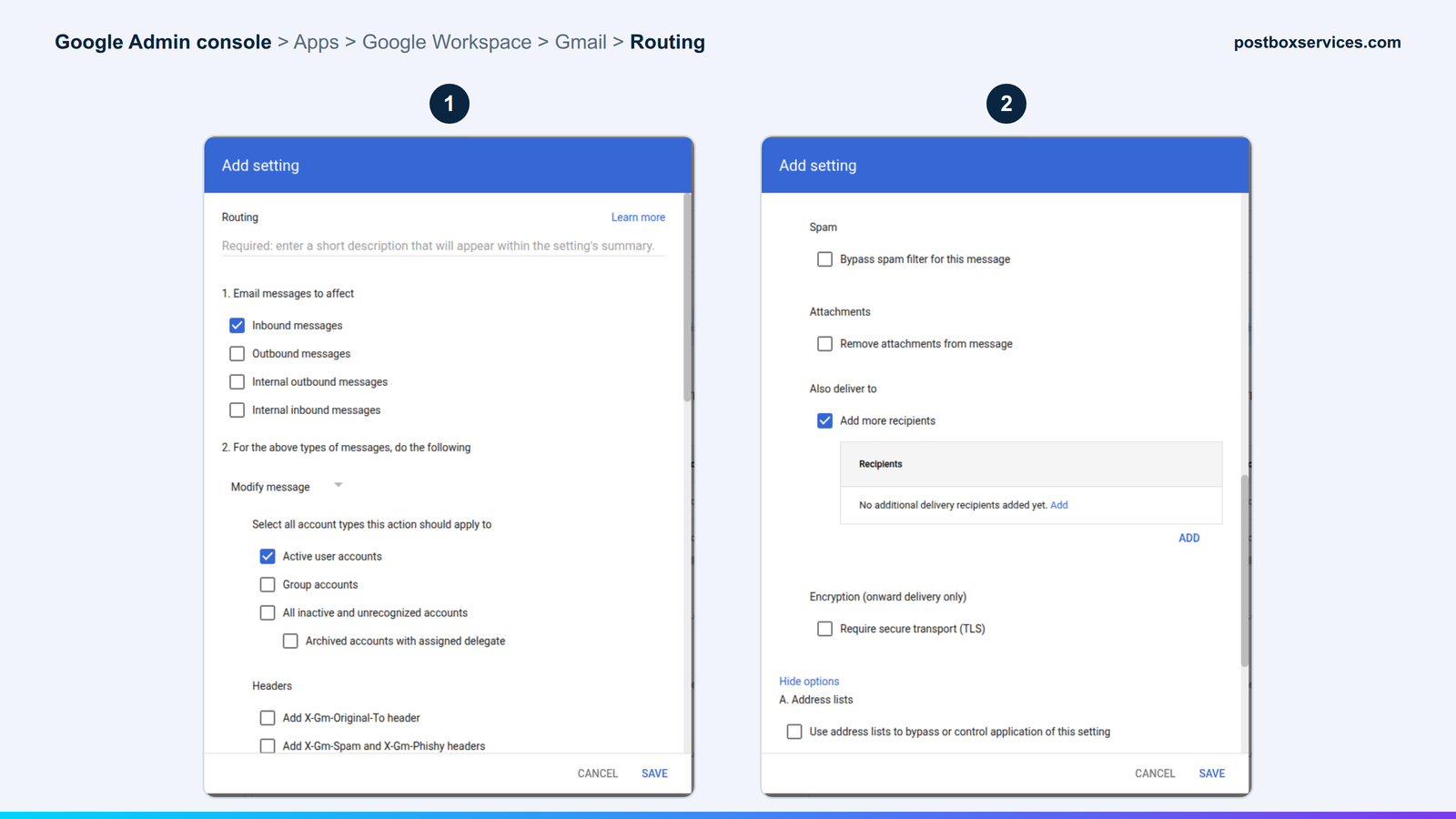
The catch: the copy only arrives while the provider's own mail system is working. It covers outages where people cannot reach their mailboxes but mail still flows. In a full outage, the copies stop too, which is why the gateway is the more complete answer.
Commercial services or your own build?
Enterprise email security vendors such as Mimecast, Proofpoint and Barracuda sell continuity as a service, and they use exactly this pattern: MX through their gateway, a rolling copy of recent mail, an emergency inbox through a web portal or Outlook add-in, and a sync back afterwards. They work well, and they are priced per user, per year.
For a smaller business, or one that would rather own its setup, the same continuity can be built with the open-source software above, on its own servers, for the cost of the infrastructure. That is work we do: we design and build the gateway, the emergency mail server, the mailbox sync and the sync back, then hand it over with a runbook so your team knows exactly what to do when the next outage starts. See our email infrastructure service.
🎯 Key Takeaways
- In a Microsoft 365 or Google Workspace outage most mail is delayed rather than lost, but the delay itself costs orders, support and deals.
- An offline copy in Outlook or Gmail is free and keeps people working on existing mail, but it cannot receive or send.
- A gateway you control in front of the provider, with an emergency mail server holding a copy of every message, keeps the business reachable during an outage.
- Run two gateways, publish SPF and DKIM for the emergency sending route in advance, and keep that route's reputation warm.
- It can be built with open-source software such as Proxmox Mail Gateway, Postfix, Rspamd, mailcow or iRedMail, on your own servers.
Checklist
- Turn on Outlook's offline copy (or Cached Exchange Mode) and Gmail offline for every user.
- Decide which mailboxes cannot go dark: sales, support, accounts, management.
- Choose the gateway (Proxmox Mail Gateway, or Postfix with Rspamd) and the emergency server (mailcow or iRedMail).
- Run two gateway servers in different locations, with monitoring and enough queue space for several days of mail.
- Configure Enhanced Filtering for Connectors and a locked-down Partner connector (Microsoft 365), or the Inbound gateway setting (Google Workspace).
- Add the gateways to your MTA-STS policy, then switch MX.
- Set up the emergency sending route now: SPF and DKIM published in advance, through an established sending service or kept warm with regular mail.
- Set up the user and alias sync, emergency logins with two-factor authentication, and the rolling retention.
- Write a one-page outage runbook and test it: switch to emergency webmail, send a reply, sync it back, and check the result.
Lived through the 12 November outage, or can't afford a day without email?
We plan and build email continuity for Microsoft 365 and Google Workspace: gateway design, emergency mailboxes, a sending route that works on the day, and recovery testing. Building and testing setups like this is what we do.
Book a free consultation Check your MX records freeFrequently Asked Questions
Do we lose email when Microsoft 365 or Google Workspace is down?
Usually not. Sending mail servers keep retrying for several days, and the provider works through its own queues once it recovers. The real damage is the delay: for hours, sometimes a day or more, nobody can read new mail, reply to customers or send quotes and invoices.
Can Outlook still be used during a Microsoft 365 outage?
Partly. New Outlook for Windows keeps an offline copy of your mail (30 days by default) and classic Outlook does the same with Cached Exchange Mode. You can read and search that copy and write replies, which wait in the Outbox. You cannot receive new mail or send anything until the service is back.
Can we put our own mail server in front of Microsoft 365 or Google Workspace?
Yes. Point your MX record to an email gateway you control, have the gateway deliver to Microsoft 365 or Google Workspace, and tell the provider about the gateway: Enhanced Filtering for Connectors in Microsoft 365, or the Inbound gateway setting in Google Workspace. The gateway can also keep a copy of every message on an emergency mail server for use during outages.
Doesn't the email gateway become a new single point of failure?
It can, if it is a single server. Run two gateway servers with different hosting providers, list both as MX records, give each enough disk to queue several days of mail, and monitor them. Sending servers then fall back to the second gateway automatically, exactly as they would with any provider's MX records.
What open-source software can be used for an email continuity setup?
For the gateway, Proxmox Mail Gateway (a ready-made mail filter with a web console and clustering) or Postfix with Rspamd and ClamAV. For the emergency mail server, a complete mail suite such as mailcow or iRedMail, which bundle Postfix, Dovecot and webmail.
Can replies sent during an outage be copied back into Microsoft 365 or Gmail later?
Yes. Microsoft 365 supports IMAP with OAuth 2.0, including unattended app access, so a sync tool can copy each user's emergency Sent folder into their mailbox. Google offers the Gmail API and the Data Migration service in the Admin console, which can import mail from any IMAP server, including delta runs for new mail.
Do we need Mimecast or Proofpoint for email continuity?
Not necessarily. Commercial continuity services work well and are built on the same idea: a gateway in front, a copy of recent mail, an emergency inbox and a sync back afterwards. Businesses that prefer not to pay a per-user subscription can build the same pattern with open-source software on their own servers.